Posted on 1 Comment

Enable Diagnostic settings for Azure App service using terraform loop

Imagine that you want to enable diagnostic settings for multiple app services on Azure using terraform. The required options can be located under Monitoring tab.

A appropriate rule option should be created to indicate where the logs should be sent. 

The available categories can be located below and I will instruct terraform to enable them all.

In order to accomplish that through terraform I used a loop. The depends_on keyword is used because firstly the app services should be created and then the diagnostic settings for them. Create a file like app_diagnostics.tf and place it inside your terraform working directory.

resource "azurerm_monitor_diagnostic_setting" "diag_settings_app" {
  depends_on = [ azurerm_windows_web_app.app_service1,azurerm_windows_web_app.app_service2 ]
  count = length(local.app_service_ids)
  name               = "diag-rule"
  target_resource_id = local.app_service_ids[count.index]
  log_analytics_workspace_id = local.log_analytics_workspace_id
  
  dynamic "log" {
    iterator = entry
    for_each = local.log_analytics_log_categories
    content {
        category = entry.value
        enabled  = true

        retention_policy {
      enabled = false
        }
    }
   
  }

  metric {
    category = "AllMetrics"

    retention_policy {
      enabled = false
      days = 30
    }
  }

}

Inside locals.tf I have created a variable that holds the app services ids, the log analytics workspace ID on which the logs will be sent and also the categories which I want to enable on Diagnostics. As shown on the first screenshot all the categories are selected.

locals {

 log_analytics_workspace_id = "/subscriptions/.../geralexgr-logs" 
 log_analytics_log_categories     = ["AppServiceHTTPLogs", "AppServiceConsoleLogs","AppServiceAppLogs","AppServiceAuditLogs","AppServiceIPSecAuditLogs","AppServicePlatformLogs"]

app_service_ids = [azurerm_windows_web_app.app_service1.id,azurerm_windows_web_app.app_service2.id]
}

As a result the loop will enable for every app service you add on app_service_ids each Diagnostic category placed on log_analytics_log_categories variable.

Posted on Leave a comment

Test your backup mechanism – Automated restore for MS SQL using Azure DevOps

Most organizations rely on their backup solutions for application faults or data corruptions. However the backup is not frequently tested in order to verify that restore would be successful. In this post I implement a backup testing mechanism.

Lets examine a scenario for an MS SQL database server. The server will output a backup file (.bak) on a storage account based on a retention policy. This backup will be automatically restored on a SQL server through a pipeline and a result will be written as an output. The result can be then reported on the monitoring solution.

The flow is depicted below. An azure devops agent should be installed on the server on which the database will be restored. The pipeline will fetch the backup file from the storage account and store it on a data disk (in my case R:\files). Then sqlcmd command will be used to restore the .bak file and record the result. The backup file is provided by a parameter on the pipeline. Also a service connection should be created with your subscription on which the storage account is located.

Pipeline code:

trigger: none
pr: none
pool:
vmImage: windows-latest
parameters:
– name: backupfile
type: string
jobs:
– job: download
displayName: Download DB backup file
steps:
– task: AzureCLI@2
displayName: az cli download backup file from storage account
inputs:
azureSubscription: 'Azure-Service-Connection'
scriptType: 'ps'
scriptLocation: 'inlineScript'
inlineScript: |
$container_name_input = "container_name"
$saccount_name = "storage_account_name"
#$json = az storage blob list –container-name $container_name_input –account-name $saccount_name
az storage blob download –file "R:\files\${{parameters.backupfile}}" –name "${{parameters.backupfile}}" –container-name $container_name_input –account-name $saccount_name –auth-mode login
– job: restore
displayName: Restore SQL backup
dependsOn: download
steps:
– task: PowerShell@2
displayName: sqlcmd restore backup
inputs:
targetType: 'inline'
script: |
sqlcmd -q "RESTORE DATABASE [Database_Name] FROM DISK=N'R:\files\${{parameters.backupfile}}' WITH REPLACE,RECOVERY" -o R:\files\result.txt;
[string]$result = Get-Content R:\files\result.txt
if ($result.contains('successfully')) {
Write-Host "Restore was succesfull…"
}
elseif ($result.contains('terminating')) {
Write-Host "Terminating…"
}

Executing pipeline:

Result:

Important:

Azure DevOps agent service is configured to run with a specific account (in my case NT/ Local System). This account should have the appropriate permissions on the SQL server for the restore procedure. The easier way would be to make this account a database sysadmin.

Adding the NT Authority\System on SQL server sysadmins

Posted on Leave a comment

Azure DevOps best practices – Organization security settings

Security is a vital component of every Organization. As such DevOps components and environments should also be protected and created based on best practices. Below are some important settings that you should consider enabling/disabling for your Azure DevOps Organization. All these can be found on the left bottom corner of your organization page.

  • Disallow external users joining your organization. In order to protect your projects, pipelines and source code you should disable external user access. This setting combined with an Azure directory integration, should allow only verified users of your company.
  • Disable public projects. Sometimes a project may be created public by mistake and expose a threat for your source code. With the below setting you can disable public projects creation.
  • Enable Log Audit Events. For security purposes you should log Pipeline and user actions. Going into security policies you can enable log Audit events. Then a new pane will be created named Auditing. Through auditing you will have a view on what is happening in your projects.
  • Don’t add users on the Project Collection Administrators group on your organization. This group will provide global admin permissions for your organization and allow changing settings on it. Make sure you have you have only the necessary personnel on this group.

Disable Allow team and project administrators to invite new users. You can disable project administrators from inviting new users. This should prohibit unnecessary invitations on your projects as only Organization administrator will be able to invite new users.

  • Install only trusted extensions inside your organization. Extensions can help you implement more complex functionality on your projects using tasks that have been created from community/companies. However one should be careful for the installed extensions and only allow verified publishers that their code will not harm your organization.
  • Enforce a maximum allowed lifespan for new PAT tokens and also restrict full scoped PAT. When your organization is connected with your company AD you can restrict the full scoped PAT. As full access for a PAT can interact with many aspects of the organization it would be a best practice only to enable the service that is needed. Also a maximum lifespan of the tokens can be enforced so that compromised tokens will expire.

Although every practice you follow cannot protect you 100% the above settings are a good starting point for every Azure DevOps administrator.

Posted on Leave a comment

Azure DevOps agent cannot checkout GitHub repository

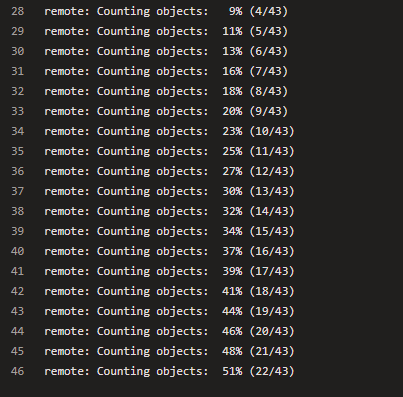
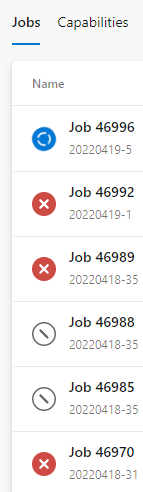
Recently I faced an issue with my Azure DevOps self hosted container agents. They could not checkout the git repositories and the build stopped due to the default timeout of 60 minutes per run.

This happened for multiple builds, as a result I had to investigate the reason behind this error.

By checking the logs inside the container on the C:\agent\_diag folder I could recognize an error message like the below:

A session for this agent already exists.
Agent connect error: The task agent xxx already has an active session for owner xxx.. Retrying until reconnected.

By searching online, I figured out that this is a reported bug on previous agents versions. In order to resolve, I updated and reconfigured the agent. You can update the agent, either from the GUI or by creating a new container and installing the latest version of azure devops agent.

In order to reconfigure the agent I first took an interactive shell on it.

docker exec -it agent-name powershell.exe

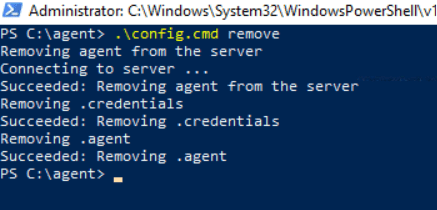
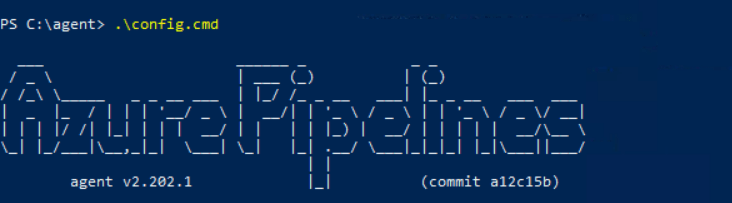
Then inside C:\agent run the below commands.

Reconfigure the agent

This is a temporary fix for your agent. If the problem persists you should open a support ticket on Microsoft to troubleshoot the issue.