For security reasons you may want to store the pipelines to another repository than the one that the code is hosted. Lets say for example that you have your application code located on test-project/repository location but your pipelines are stored on the consoleapp1 repository. Also you want to have continuous integration and deployment for the repository on which the code is hosted, so when code is pushed to repository then the pipeline should trigger which is hosted on ConsoleApp1.
You can do that using the repositories resource of azure devops. You will need to define the repository and also configure trigger for this repository based on your strategy.
The final result would be the pipeline to run when code is commited on the code repository instead of the one that pipelines are hosted.
In this article I will demonstrate how one can deploy app service code on Azure through Azure DevOps. App service is a hosting provider for your applications (web app) that can be created with multiple hosting options and application specific settings.
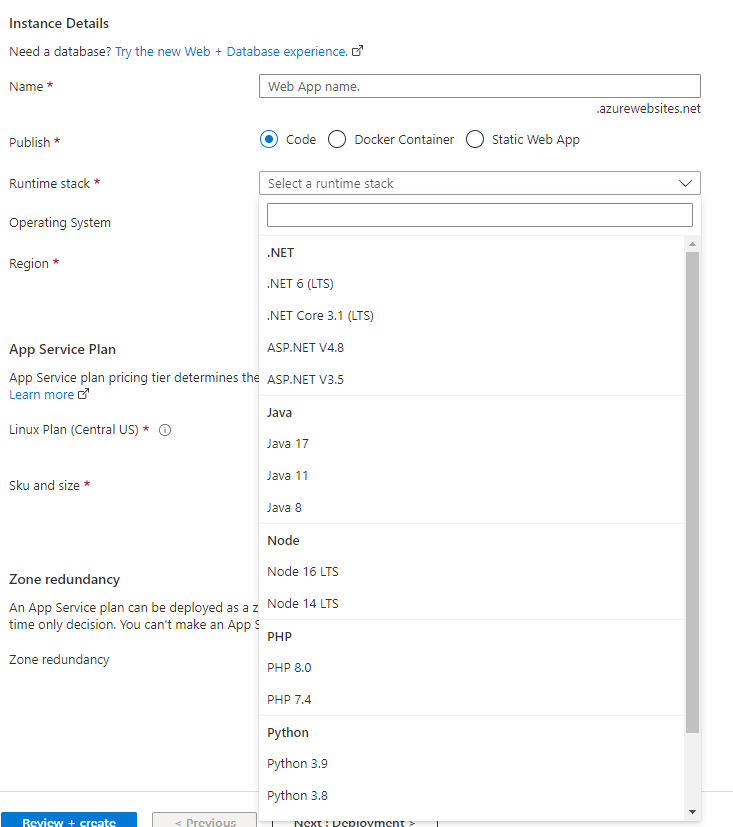
When creating an app service you can choose from many available options like different code frameworks or even container deployments.
For my demo I wanted to deploy an asp .net core web api using .net 6 version hosted on windows app service.
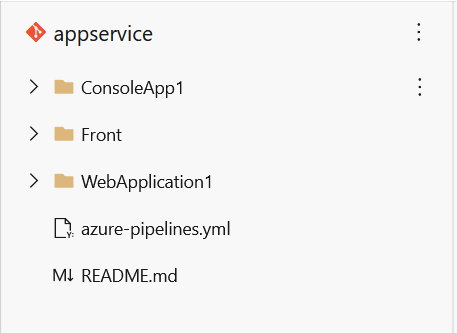
My repository structure is shown below. The app service that I want to deploy is the one located under Front folder.
The pipeline code can be found below:
This file contains hidden or bidirectional Unicode text that may be interpreted or compiled differently than what appears below. To review, open the file in an editor that reveals hidden Unicode characters.
Learn more about bidirectional Unicode characters
In more detail there are three necessary steps for the deployment.
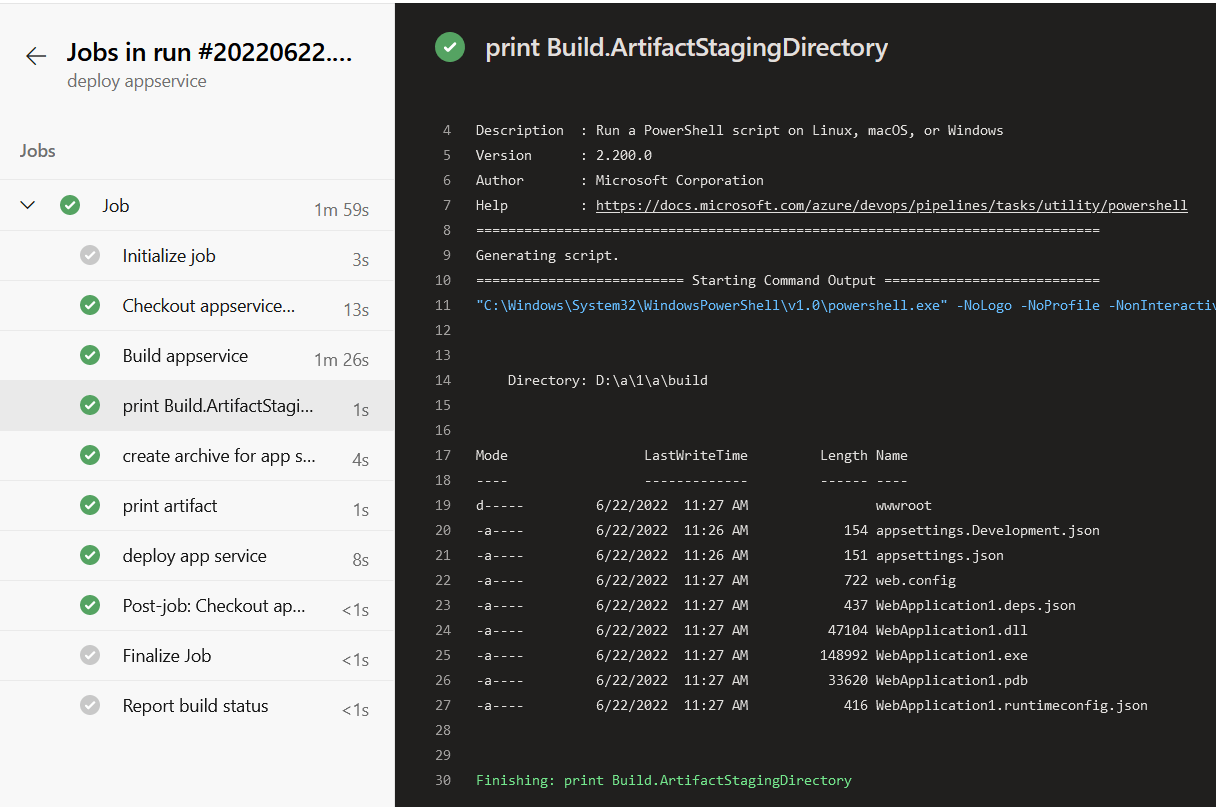
The first task will build the .NET app using VSbuild task. The build will use as parameters the deployonBuild and the webpublishmethod as filesystem in order to specify the path on which the build output will be stored.
The second task will bundle this build output to a zip file and then the third task will upload this .zip file in the app service using a service connection with the subscription. The two parameters that should be changed are azureSubscription and WebAppName which should be the app service name.
When running the pipeline, a build folder will be created as shown in the below screenshot that will host the build output.
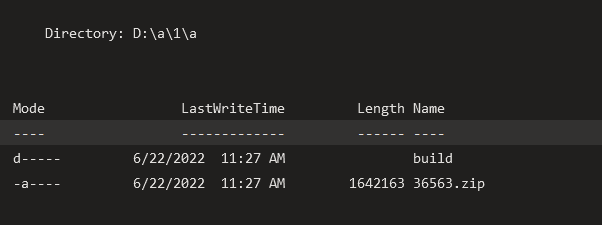
This output will be then zipped to a file that will be uploaded to the app service.
Recently I had to implement the scenario that is depicted below.
In more detail I had to implement a way to get user input (usernames) in order to pass this information on an Azure DevOps pipeline and through this pipeline make some actions on Azure through az cli.
For the described solution I used the below services:
Azure Devops
Power Automate
Azure DevOps rest API
Azure
The first thing that I created was the form. In this form the user has to provide the input of the usernames in a requested format in order to pass this information on the later components.
Then I created a new power automate flow that would handle the input of this form and make a POST request on Azure DevOps api in order to trigger a build pipeline with the parameters of the form as input.
The flow and the task that have been used are depicted below.
Select response ID on the form.
On the POST request you should enter your details regarding the pipeline ID, organization and project. The body of the request should be as shown in order to get the parameters parsed correctly.
The azure devops pipeline will have as an input parameter and empty object.
I was struggling to make a dedicated sql pool pause automatically through a pipeline on non working hours. Although there are some options that you can use with az cli, it seemed that they could not work with an error that indicated resource could not be found.
In order to stop a dedicated sql pool (formerly SQL DW) you can follow the below guide that uses az cli to get an access token.
az account get-access-token
Add this token on Authorization tab with Bearer type and make your request.
By checking the result you can see that pause is completed sucesfully.
You can also automate the procedure using an Azure DevOps pipeline.
This file contains hidden or bidirectional Unicode text that may be interpreted or compiled differently than what appears below. To review, open the file in an editor that reveals hidden Unicode characters.
Learn more about bidirectional Unicode characters