Posted on Leave a comment

Change name for Azure devops pipeline

A common requirement when you work on your pipelines would be to name them according to your needs.

By default Azure devops name your pipeline with the buildID and the commit that initiated the build as shown below.

In order to change the name of the pipeline you can use the name keyword.

name: mypipeline

trigger:
- none

pool:
  vmImage: ubuntu-latest

steps:
- script: echo Hello, world!
  displayName: 'Run a one-line script'

Then you will have your custom name in the run of the pipeline.

Also from September 2022 and later, you can also remove the commit message from the title using appendCommitMessageToRunName

So by also adding this option

name: mypipeline
appendCommitMessageToRunName: false

trigger:
- none

pool:
  vmImage: ubuntu-latest

steps:
- script: echo Hello, world!
  displayName: 'Run a one-line script'

I will get only my preferred name on the pipeline run.

YouTube tutorial:

Posted on Leave a comment

Execute powershell command without username password on Azure virtual machine

You can use az cli task on Azure devops in order to execute a powershell command inside a virtual machine without having to connect on it with username and password. In order to do that you have to use AzureCLI task and invoke a RunPowerShellScript.

    - task: AzureCLI@2
      displayName: execute command inside vm
      inputs:
        azureSubscription: 'subscription'
        scriptType: 'ps'
        scriptLocation: 'inlineScript'
        inlineScript: 'az vm run-command invoke --command-id RunPowerShellScript --name $(vm_name) -g $(vnet_rg_name) --scripts "hostname"'

You should use your own variables regarding the vm_name and rg_name. This task will execute on a windows-latest machine and will output the hostname of the machine that is given as input with the variables.

Posted on Leave a comment

Enable debug logs on Azure DevOps pipelines

In some cases you may need to troubleshoot your azure devops tasks inside a job and get a more detailed output than the default. You can enable a detailed log output using predefined variables. In more detail you can use System.Debug and set it to true.

variables:
  - name: System.Debug
    value: true

By doing so you will get more debug messages as shown in the below screenshot.

Posted on Leave a comment

remote: TF401019: The Git repository with name or identifier does not exist or you do not have permissions for the operation you are attempting.

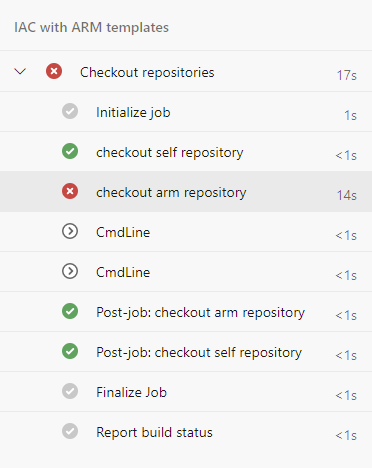
Recently from a new devops project I tried to checkout an external repository from another devops project and I got a failure. In more detail I was working on a new pipeline on devops project B and I was trying to fetch a repository from azure devops project A.

remote: TF401019: The Git repository with name or identifier does not exist or you do not have permissions for the operation you are attempting.

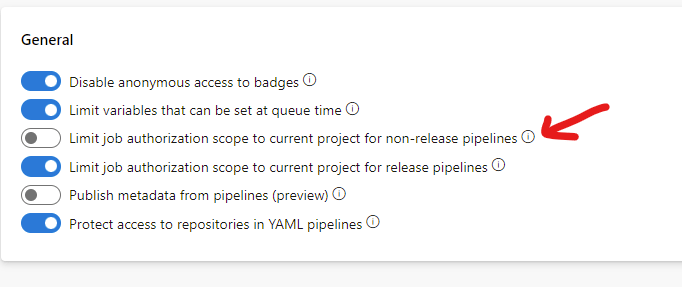
Searching it further I realized that the error was the job scope. In order to resolve I disabled the job scope for the current project (the one from which I run the pipeline – project B).

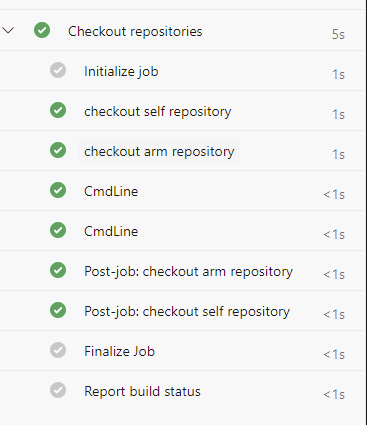
After disabling “Limit job authorization scope to current project for non release pipelines” then I was able to get a successful checkout for the external repository.