Posted on Leave a comment

Build pipeline on tag push – Azure DevOps build triggers

There are multiple ways to define your continuous integration trigger on a pipeline depending on your needs. One common approach is to trigger a build whenever a new merge or push is done on your branch.

For example with the below notation you could trigger a new build every time a new push is merged on the uat branch.

trigger:
- uat

Another approach could be the pull request. Every time a new pull request is created for a specific branch your build could be initiated. In order to accomplish that you should use the pr keyword.

The below example will trigger when a new pull request is created and the merge destination is main branch. This approach could help you identify if the code of a specific feature/branch actually builds and can be merged on your main branch.

pr:
  branches:
    include:
    - main

Another approach is the tags functionality. You could run a build only if a specific tag is pushed along with the commit.

The below example will only build when the tag release.* is pushed on the branch on which the pipeline is located.

trigger:
  tags:
    include:
    - release.*

Some tags that could trigger my build are: release.v1 , release.master, release.v2

In order to push a tag on your branch using cmd you should

git add .
git commit -m "commit message"
git tag mytag
git push --tags

Then on tags section of your repository you can locate your new tag.

Documentation of triggers for Azure pipelines:

https://docs.microsoft.com/en-us/azure/devops/pipelines/yaml-schema/trigger?view=azure-pipelines

Video tutorial on YouTube:

Posted on Leave a comment

Error MSB3073 The command “npm run build” exited with code 1 – Visual Studio

Recently I was trying to build a complex project which included also node js code and was deployable to IIS. The error I faced on visual studio during the build was the below.

"npm run build" exited with code 1 - Visual Studio 
"npm install" exited with code 1 - Visual Studio

both of which were misleading.

In order to locate the error I navigated on the Node project and tried to build using

npm run build

Command line never lies. I was able to determine that webpack was not installed.

In order to resolve I executed:

npm install -g webpack
npm install -g webpack-cli
Posted on 4 Comments

The specified module ‘MSAL.PS’ was not loaded because no valid module file was found in any module directory.

Recently when I used Dynamics 365 Finance and Operation tools plugin for Azure Devops I faced an issue with a missing Powershell module.

Error message:

##[error]The specified module 'MSAL.PS' was not loaded because no valid module file was found in any module directory.

In order to bypass this issue, add a PowerShell step with the below commands:

Set-PSRepository PSGallery -InstallationPolicy Trusted
Install-Module MSAL.PS
Import-Module MSAL.PS

Your final pipeline should look like the one below.

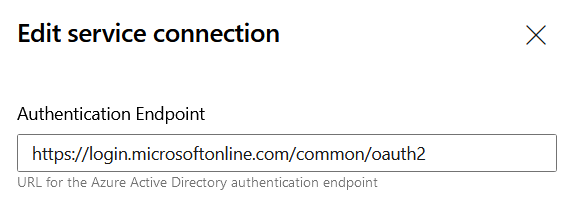
An additional issue you may face, could relate with the service connection authentication endpoint. The error indicates that the common endpoint cannot be used and the specific tenant-endpoint should be used instead.

##[error]AADSTS9001023: The grant type is not supported over the /common or /consumers endpoints. Please use the /organizations or tenant-specific endpoint.

Go and edit your service connection details

Endpoint URL:

https://login.microsoftonline.com/organizations

Be sure that your user has sufficient privileges and that prerequisites are met as documented from Microsoft.

LCS doesn’t support service-to-service authentication. Therefore, only regular user credentials (that is, a user name and password) can be used. Because the pipelines don’t run interactively, multifactor authentication must not be set up for the account that you use. We recommend that you set up a separate user account that has limited access and strong credentials that can regularly be rotated for security purposes.

Create an LCS connection in Azure Pipelines

https://docs.microsoft.com/en-us/dynamics365/fin-ops-core/dev-itpro/dev-tools/pipeline-lcs-connection

Posted on Leave a comment

Export Github Organization Dependencies as text

Github has introduced a powerful feature to get complete view on your project dependencies. This feature is available per project but also for a whole organization which could contain hundred of projects.

You can get all your dependencies for your organization using the below link (ORG should be replaced with your GitHub organization name)

https://github.com/orgs/ORG/insights/dependencies

I was searching a method to get massively these dependencies exported as a file. I could obtain this information using the below code with the inspect element section of Chrome browser.

elements = document.getElementsByClassName("js-navigation-open");
for (var i=0; i <elements.length; i++ ){
    var singleElement = elements[i];
    console.log(singleElement.outerText);

The result is a list with the names of the dependencies.

Unfortunately this method will only get the dependencies that are present on each page that you are currently browsing.