A quick an easy way to authenticate on Azure management API is to use az cli get-access-token command and use this as a Bearer token on your API calls.
Given that you have a blob storage container with multiple files, you could download the most latest one easily with az cli
In my scenario I have a container named backups which includes multiple MS SQL backups. I wanted to download the latest in order to restore through a pipeline on SQL server.
In order to accomplish that you should first login with az cli.
az login
If this is not possible through automation you would have to create a managed identity for your resource. The code is uploaded on the below gist.
This file contains hidden or bidirectional Unicode text that may be interpreted or compiled differently than what appears below. To review, open the file in an editor that reveals hidden Unicode characters.
Learn more about bidirectional Unicode characters
When using powershell contains method you should be aware of the type of the object that is used.
Lets examine the below string which was used with contains on a powershell script.
Processed 384 pages for database ‘restore’, file ‘restore’ on file 1. Processed 2 pages for database ‘restore’, file ‘restore_log’ on file 1. RESTORE DATABASE successfully processed 386 pages in 0.004 seconds (752.929 MB/sec).
The string was stored on $result variable and I wanted to capture if a specific string was included in the variable. Although the string is included in the variable the result was false.
After investigating I was able to figure that the object type of the $result variable was an object and Contains could not evaluate successfully
In this situation you would have to cast the object on a string data type to evaluate correctly.
For example when using Get-Content you could cast to a string like below.
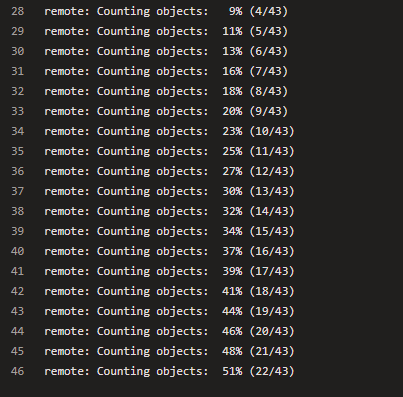
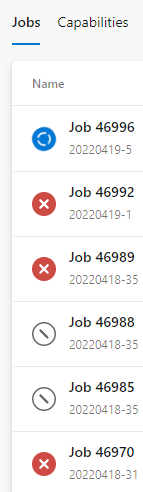
Recently I faced an issue with my Azure DevOps self hosted container agents. They could not checkout the git repositories and the build stopped due to the default timeout of 60 minutes per run.
This happened for multiple builds, as a result I had to investigate the reason behind this error.
By checking the logs inside the container on the C:\agent\_diag folder I could recognize an error message like the below:
A session for this agent already exists. Agent connect error: The task agent xxx already has an active session for owner xxx.. Retrying until reconnected.
By searching online, I figured out that this is a reported bug on previous agents versions. In order to resolve, I updated and reconfigured the agent. You can update the agent, either from the GUI or by creating a new container and installing the latest version of azure devops agent.
In order to reconfigure the agent I first took an interactive shell on it.
docker exec -it agent-name powershell.exe
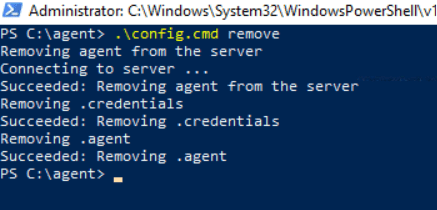
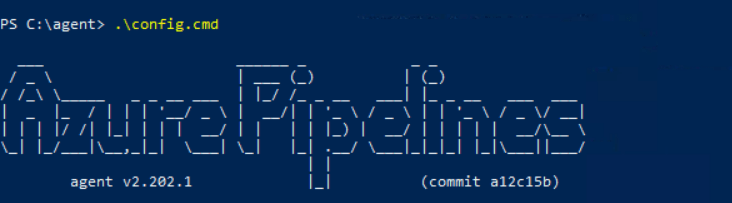
Then inside C:\agent run the below commands.
Reconfigure the agent
This is a temporary fix for your agent. If the problem persists you should open a support ticket on Microsoft to troubleshoot the issue.