Posted on Leave a comment

Build and run .NET applications on Azure DevOps

In this article I will explain how one can automate their .NET applications development using Azure DevOps. For the sake of this example I created a simple Console Application targeting .NET Framework 6.

The code only includes the below line.

Console.WriteLine("Hello from Azure Devops!");

First things first, a Git repository will be needed for the CI procedure. I chose to use Azure DevOps repositories as it is integrated with Visual studio and can be used very quickly. By pressing Add to Source Control a dialog will appear to choose the organization and project on which the repository will be created. This will create a new repository and you should then commit and push your code to the repository using the UI of Visual Studio.

After the push, the repository will be created on Azure DevOps

I disabled the automatic triggers on the repository with pr and trigger to none and I used the latest ubuntu machine as the build agent.

If a specific version of .NET is required it should be included in the task UseDotNet@2.

The building of the project is done from the DotNetCoreCLI@2 task. It will search everything with the .csproj extension and build it using the Azure CLI.

The last task that I included will run the application from the debug output folder.

trigger:
- none

pr: none 

pool:
  vmImage: ubuntu-latest

steps:

- task: UseDotNet@2
  inputs:
    version: '6.0.x'
    includePreviewVersions: true
    

- task: DotNetCoreCLI@2
  displayName: Building .NET project
  inputs:
    command: 'build'
    projects: '**/*.csproj'
    arguments: '--configuration debug'

- task: PowerShell@2
  inputs:
    targetType: 'inline'
    script: |
      cd "bin/debug/net6.0"
      ./ConsoleApp1

As my application only Included a print message, this will be shown on the output.

More details on how to build .NET projects with Azure DevOps


https://docs.microsoft.com/en-us/azure/devops/pipelines/ecosystems/dotnet-core?view=azure-devops&tabs=dotnetfive

Posted on 4 Comments

The specified module ‘MSAL.PS’ was not loaded because no valid module file was found in any module directory.

Recently when I used Dynamics 365 Finance and Operation tools plugin for Azure Devops I faced an issue with a missing Powershell module.

Error message:

##[error]The specified module 'MSAL.PS' was not loaded because no valid module file was found in any module directory.

In order to bypass this issue, add a PowerShell step with the below commands:

Set-PSRepository PSGallery -InstallationPolicy Trusted
Install-Module MSAL.PS
Import-Module MSAL.PS

Your final pipeline should look like the one below.

An additional issue you may face, could relate with the service connection authentication endpoint. The error indicates that the common endpoint cannot be used and the specific tenant-endpoint should be used instead.

##[error]AADSTS9001023: The grant type is not supported over the /common or /consumers endpoints. Please use the /organizations or tenant-specific endpoint.

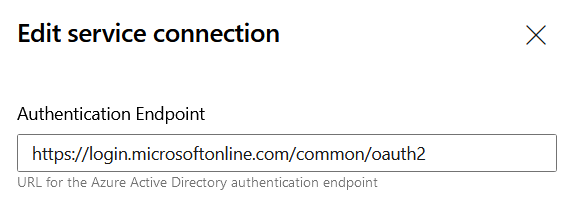
Go and edit your service connection details

Endpoint URL:

https://login.microsoftonline.com/organizations

Be sure that your user has sufficient privileges and that prerequisites are met as documented from Microsoft.

LCS doesn’t support service-to-service authentication. Therefore, only regular user credentials (that is, a user name and password) can be used. Because the pipelines don’t run interactively, multifactor authentication must not be set up for the account that you use. We recommend that you set up a separate user account that has limited access and strong credentials that can regularly be rotated for security purposes.

Create an LCS connection in Azure Pipelines

https://docs.microsoft.com/en-us/dynamics365/fin-ops-core/dev-itpro/dev-tools/pipeline-lcs-connection

Posted on 5 Comments

Pass parameters from build to release pipelines on Azure devops

When you need to pass parameters between your build and release pipelines it could be a real struggle if you do not want to use variable groups. Variable groups can accomplish the requested (to pass values between build and release pipelines) but this scenario is not useful for a parametric input which is a common case when deploying a project. You can accomplish that either by using a plugin from another publisher or by following the publish artifacts procedure that I will describe.

In order to pass variables between your build and release pipelines you can create/export a file containing your variable on your build agent. This file should be exported as build artifact and then downloaded on the release pipeline.

The below build pipeline implements the functionality I described. The exported file is named projectname.txt and will be located on artifacts folder on your build agent inside folder drop. For example C:\agent\1\a\drop

trigger:
- dev

pool:
  vmImage: windows-latest

parameters:
  - name: powerenvironment
    displayName: Where to deploy?
    type: string

steps:

- task: PowerShell@2
  inputs:
    targetType: 'inline'
    script: |
      $variable = '${{parameters.powerenvironment}}'
      $variable | Out-File $(Build.ArtifactStagingDirectory)\projectname.txt
      Get-Content $(Build.ArtifactStagingDirectory)\projectname.txt

- task: PublishBuildArtifacts@1
  inputs:
    PathtoPublish: '$(Build.ArtifactStagingDirectory)'
    ArtifactName: 'drop'
    publishLocation: 'Container'

When you run the pipeline you will be asked for a parameter. I gave this entry my name which will be passed on release.

My release pipeline will download the build artifacts and get the value of the file. The release pipeline includes two steps.

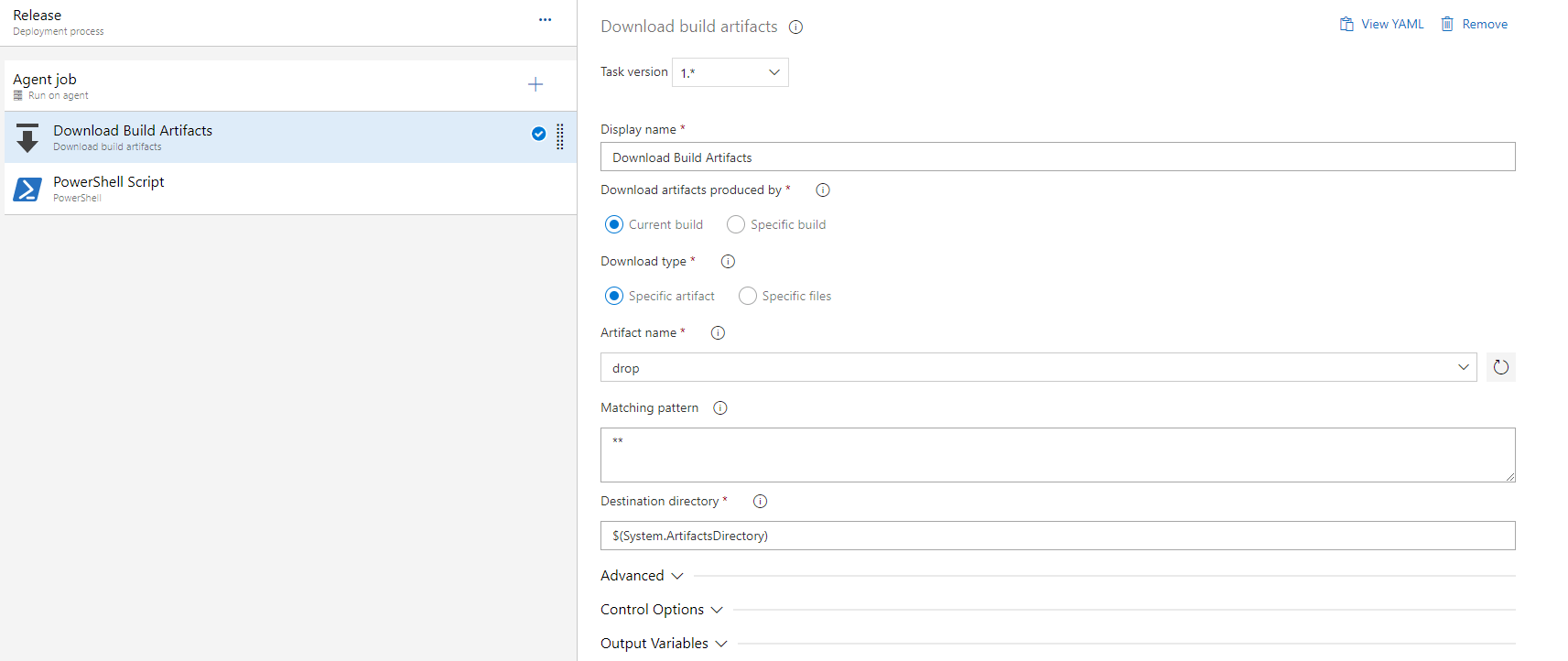
The first one downloads the folder drop from build artifacts. The projectname.txt is located there.

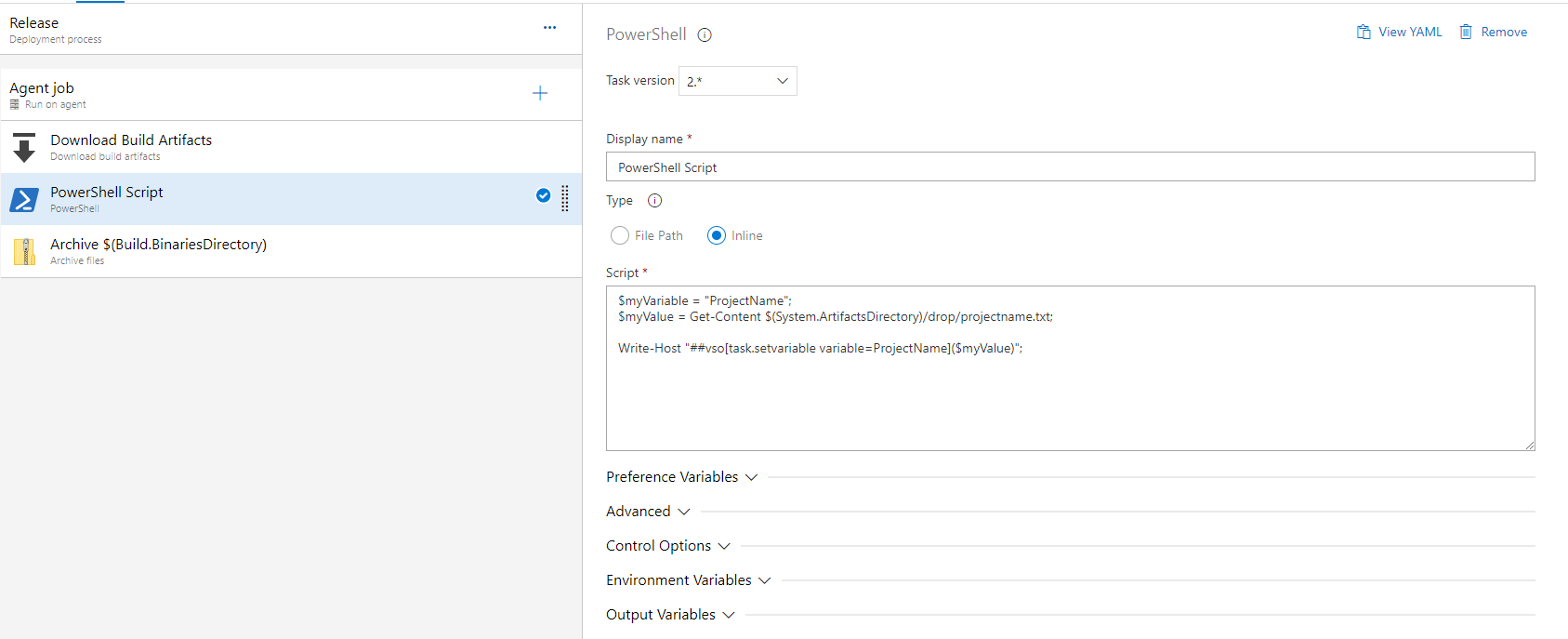
Then the powershell will print the contents of the projectname.txt

You can check the result and verify you get the parameter input value from the powershell script.

Bonus content:

You can also write your input parameter as a variable on the build agent and reference this value on a later step. This should be again a powershell step on your release pipeline.

$myVariable = "ProjectName";
$myValue = Get-Content $(System.ArtifactsDirectory)/drop/projectname.txt;

Write-Host "##vso[task.setvariable variable=ProjectName]($myValue)";

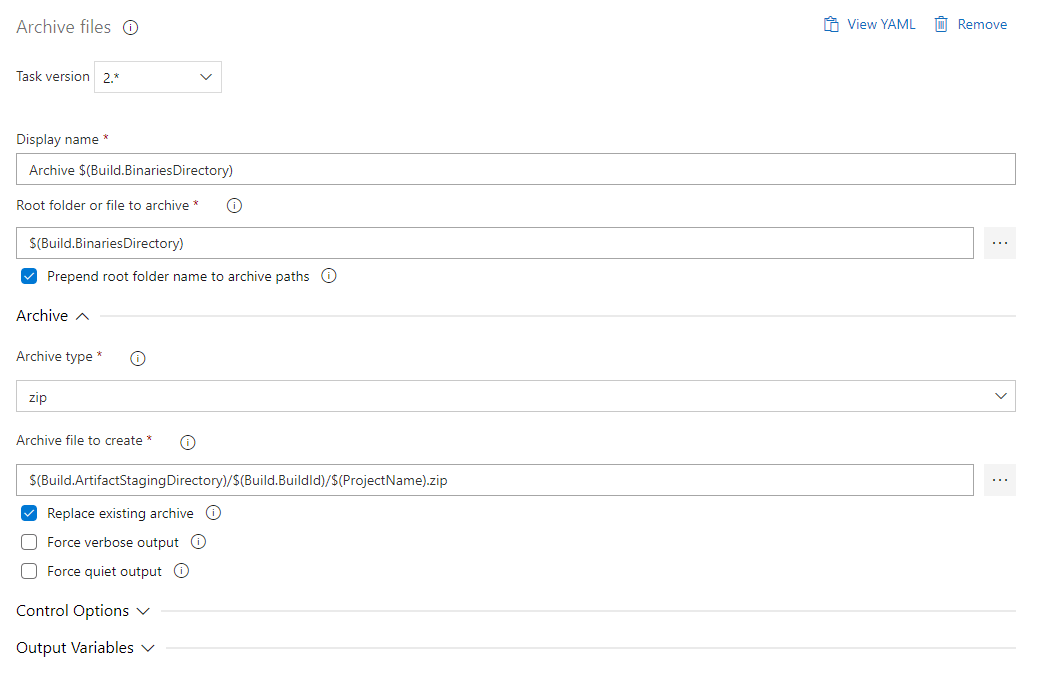
Lastly create a dump archive step to reference the input parameter from the build pipeline.

In order to test, use in the archive path the ProjectName variable.

Run the pipeline and verify that input parameter is correct (I used gerasimos).

Youtube video:

Posted on Leave a comment

There is not enough space on the disk – Azure Devops build containers

If the retention policies are not defined properly on Azure DevOps you may encounter out of space issues on your windows build containers. Take for example the below build, which stopped as it could not copy the necessary files on the build/temp folder.

In order to fix the build, you can connect to the windows server which runs the containers and get a prompt for the one that failed.

docker exec -it agent-name-01 cmd.exe

You can then check for the available free space:

Navigate to folder work and delete some build folders to free up space.