Powershell is used very often on Azure DevOps tasks, as with it you can implement functionality that is not supported out of the box.
In this article I will explain some options that you may need during your executions.
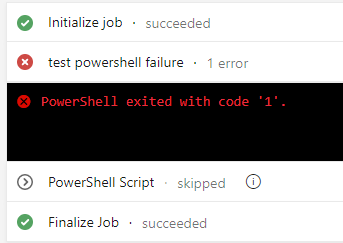
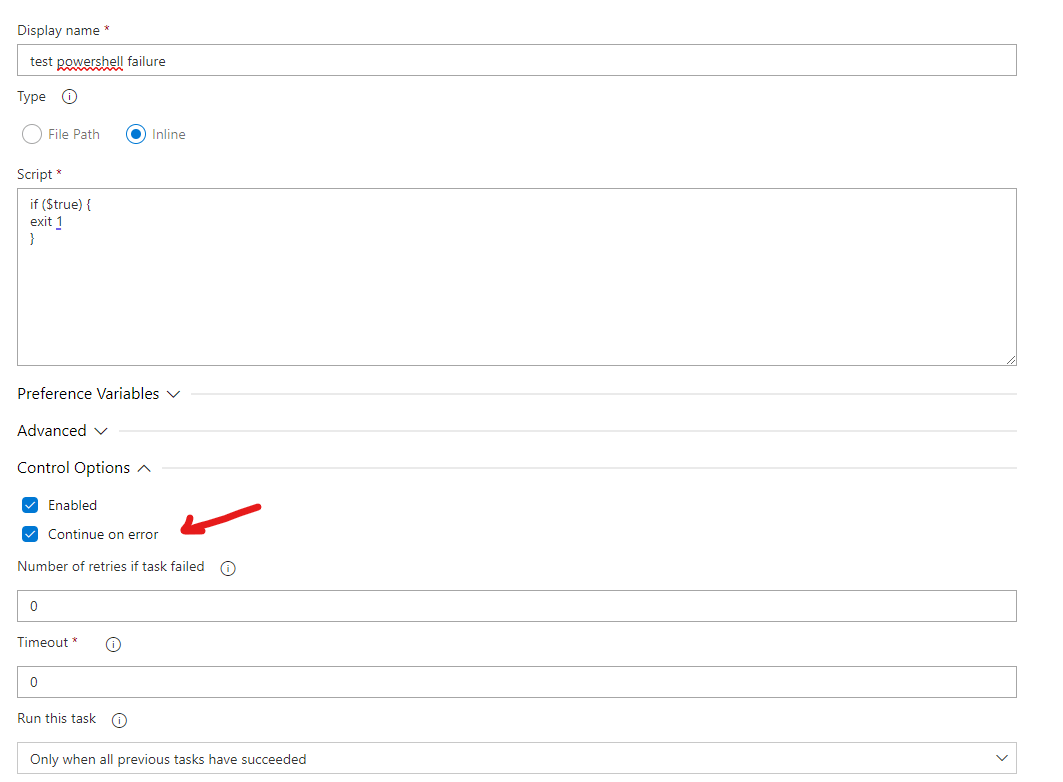
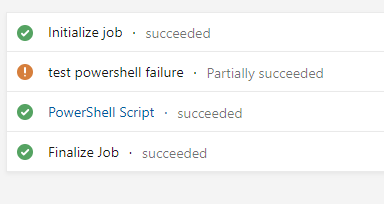
You can fail a task on Azure Devops with powershell checks. For instance you can integrate your logic and if you get a response that is not the requested you can fail the task.
In some cases you may need to use Invoke-WebRequest of powershell as a correct result with status code of 404. A use case for this scenario would be a smoke test for a particular service or URL. In newer powershell versions you can use SkipHttpErrorCheck in order to stop powershell from failing the script.
The below example is a simple Web request that will fail on Powershell <7 with an exception if a 404 response is returned from the webpage.
$req = Invoke-WebRequest -Uri $url -Method GET
The parameter that you could use with Powershell 7++ and you would not have the powershell task failed would be.
$req = Invoke-WebRequest -Uri $url -Method GET -SkipHttpErrorCheck
In order to bypass this issue you could handle the exception on Powershell <7 and add your logic inside the catch block. For example
Following my previous article about resources deployment on Azure using terraform, I will now explain how you could deploy those resources through Azure DevOps.
Then you will have to create a resource group and a storage account inside. You will need the storage account to create a container that will hold you tfstate file.
Under your storage account select containers and add a new container. I created one named terraform that will be used in the pipeline.
Pipeline explanation:
Pipeline contains three tasks. The first task will install terraform tools. The second one will initialize terraform in your working directory. Based on the user input provided in the pipeline the appropriate resource will be deployed. The code on the github contains two separate directories, one for windows and one for linux machines.
Selecting windows will deploy a windows VM using terraform
The third task will apply your terraform configuration. The working directory is generated automatically from the provided parameter.
Terraform init variables:
          - task: TerraformTaskV2@2
            displayName: terraform init
            inputs:
              provider: 'azurerm'
              command: 'init'
              workingDirectory: '$(Build.SourcesDirectory)/${{ parameters.image }}' // your working terraform directory
              backendServiceArm: 'AzureMSDN' // azure devops service connection with your subscription
              backendAzureRmResourceGroupName: 'terraform' //resource group name
              backendAzureRmStorageAccountName: 'geralexgrstorageaccount' //storage account name
              backendAzureRmContainerName: 'terraform' //container inside storage account
              backendAzureRmKey: 'terraform.tfstate' //state file name inside your storage account
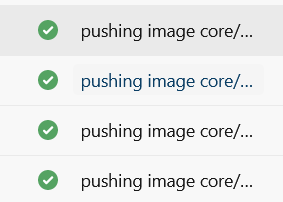
On a pipeline that I was creating I wanted to push multiple docker images on an Azure container registry based on a list. In order to do that I used the docker@2 task on a loop providing the images that I had to push as a parameter. Code is attached below.
This file contains hidden or bidirectional Unicode text that may be interpreted or compiled differently than what appears below. To review, open the file in an editor that reveals hidden Unicode characters.
Learn more about bidirectional Unicode characters
This task will run steps based on the images you provide on the parameters list. An important note is that you need to have the image named accordingly in order to get a successful result. For example if you need to push on geralexgr.azurecr.io you will need to have your images named as below.