Posted on Leave a comment

Execute powershell command without username password on Azure virtual machine

You can use az cli task on Azure devops in order to execute a powershell command inside a virtual machine without having to connect on it with username and password. In order to do that you have to use AzureCLI task and invoke a RunPowerShellScript.

    - task: AzureCLI@2
      displayName: execute command inside vm
      inputs:
        azureSubscription: 'subscription'
        scriptType: 'ps'
        scriptLocation: 'inlineScript'
        inlineScript: 'az vm run-command invoke --command-id RunPowerShellScript --name $(vm_name) -g $(vnet_rg_name) --scripts "hostname"'

You should use your own variables regarding the vm_name and rg_name. This task will execute on a windows-latest machine and will output the hostname of the machine that is given as input with the variables.

Posted on Leave a comment

Enable debug logs on Azure DevOps pipelines

In some cases you may need to troubleshoot your azure devops tasks inside a job and get a more detailed output than the default. You can enable a detailed log output using predefined variables. In more detail you can use System.Debug and set it to true.

variables:
  - name: System.Debug
    value: true

By doing so you will get more debug messages as shown in the below screenshot.

Posted on Leave a comment

remote: TF401019: The Git repository with name or identifier does not exist or you do not have permissions for the operation you are attempting.

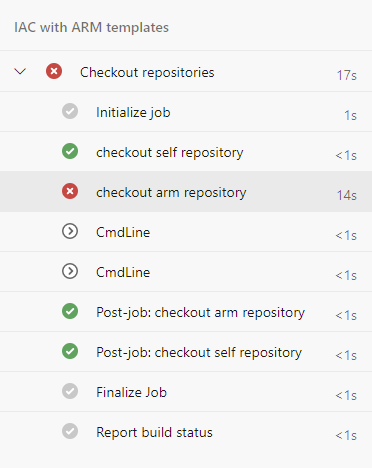
Recently from a new devops project I tried to checkout an external repository from another devops project and I got a failure. In more detail I was working on a new pipeline on devops project B and I was trying to fetch a repository from azure devops project A.

remote: TF401019: The Git repository with name or identifier does not exist or you do not have permissions for the operation you are attempting.

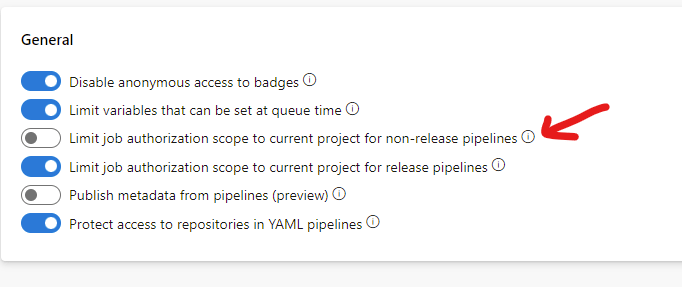
Searching it further I realized that the error was the job scope. In order to resolve I disabled the job scope for the current project (the one from which I run the pipeline – project B).

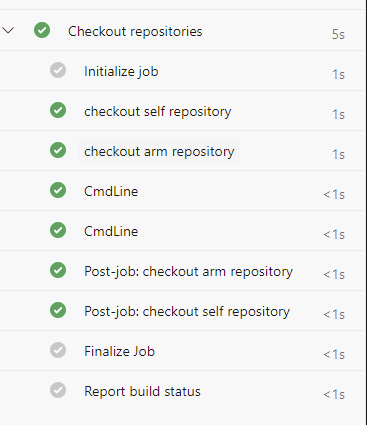
After disabling “Limit job authorization scope to current project for non release pipelines” then I was able to get a successful checkout for the external repository.

Posted on Leave a comment

Install azure cli using Powershell – silent mode

Az cli is a very important tool that one devops engineer may need to install on systems. You can perform a silent install on a windows machine using the powershell below:

$msiFilePath = "azure-cli.msi"
Invoke-WebRequest https://aka.ms/installazurecliwindows -OutFile $msiFilePath
             
$MSIArguments = @(
    "/i"
    ('"{0}"' -f $msiFilePath)
    "/qn"
    "/norestart"
)               
Start-Process "msiexec.exe" -ArgumentList $MSIArguments -Wait -NoNewWindow
Remove-Item -Path $msiFilePath  -Force

By running the powershell the download procedure will begin.

When the installation finishes you can locate it under installed programs:

https://docs.microsoft.com/en-us/cli/azure/install-azure-cli-windows?tabs=azure-cli