Posted on Leave a comment

Create a release pipeline and deploy to local Kubernetes cluster with Azure Devops

On a previous article I described how you could create your self hosted agent to run your pipelines on Azure Devops. In this article I will explain how you can use this agent to deploy resources on your local Kubernetes cluster. As a prerequisite you should already have a kubernetes cluster locally. You can do that by installing Docker and enable the option for a kube cluster.

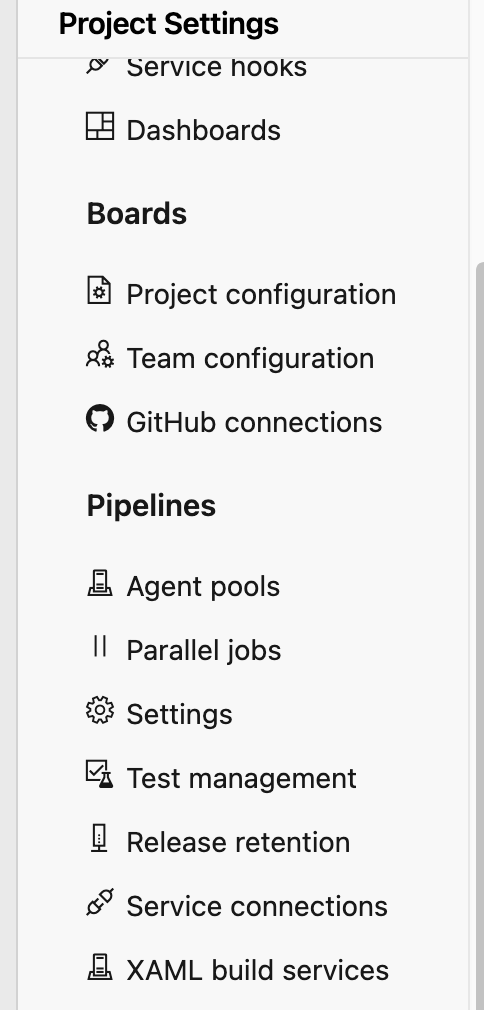
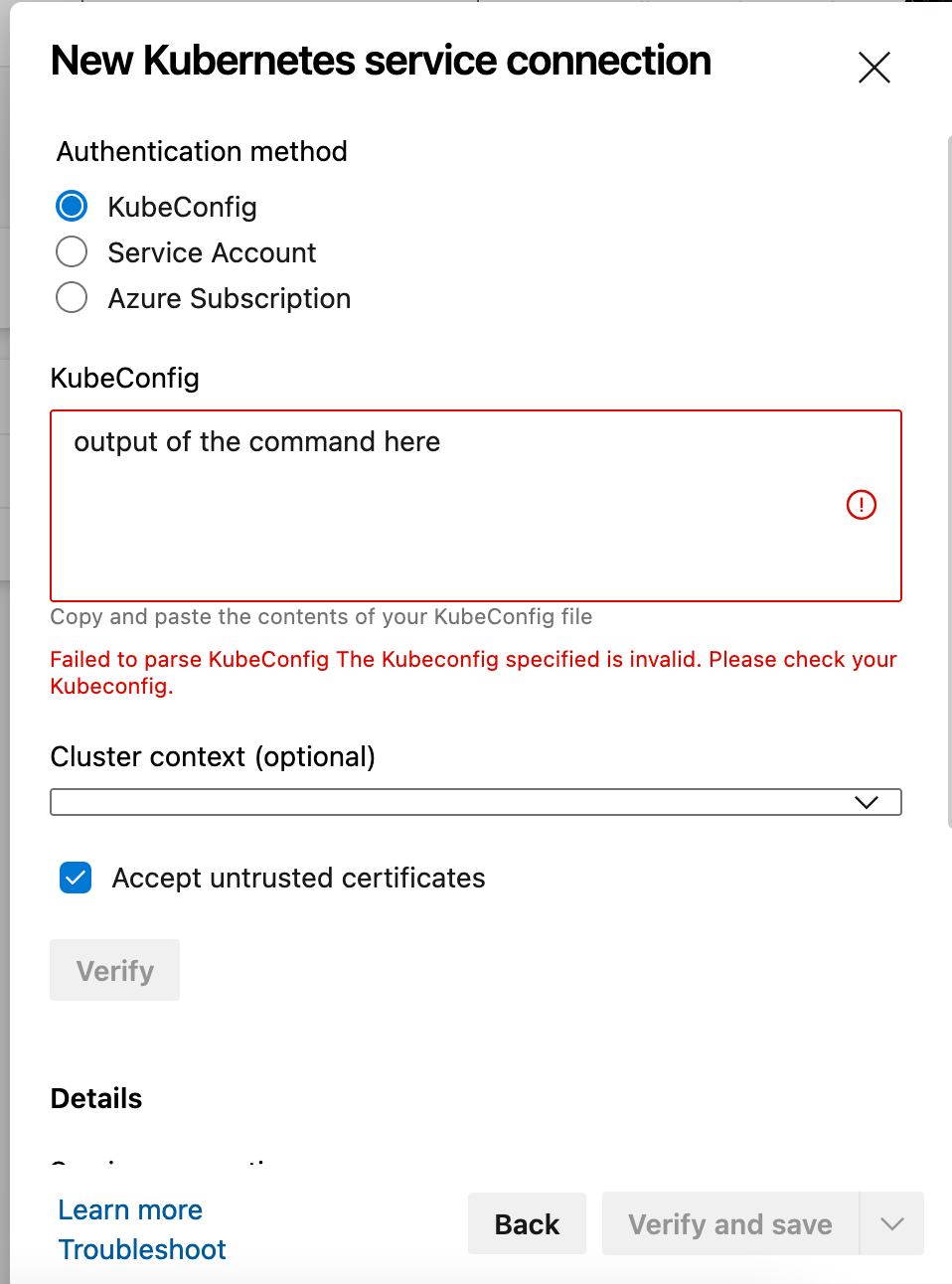
First things first you should connect your local Kubernetes cluster with Azure devops. For that reason you should go on Project settings -> Service connections and select Kubernetes
You can select between three different options. I selected kubeconfig
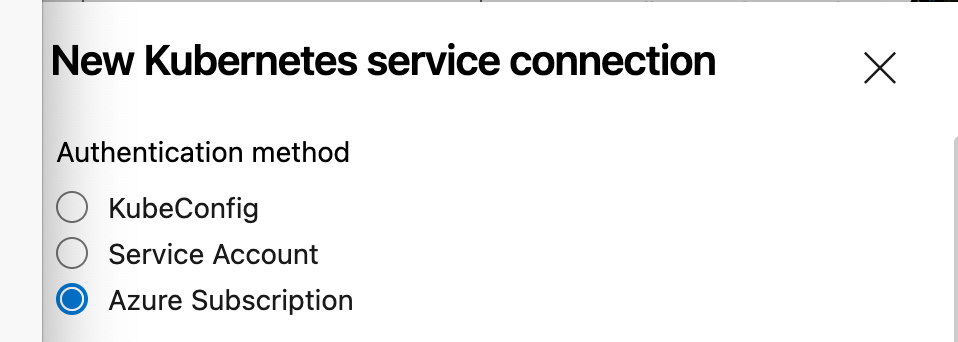
Get the output of the below command and paste it on the box. Then select untrusted certificates and add press verify and save.

kubectl config view --raw
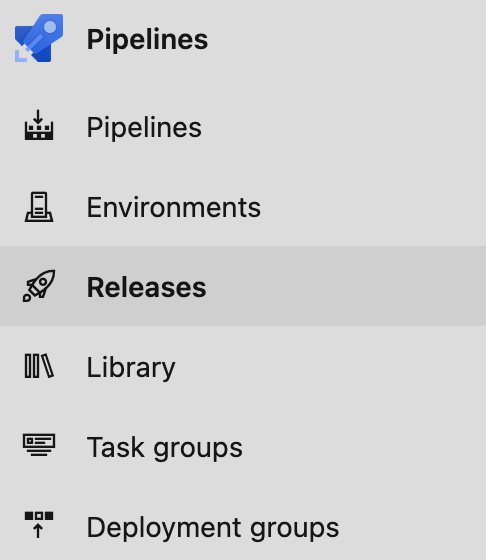
Then you should go and create a release pipeline. Go on releases tab and press create release.
In the setup of the release pipeline you can change the trigger from automatic to manual. You should select your build pipeline that will trigger the release. In my case I selected the one I created on a previous article.

On the tasks of the release pipeline you should select the agent pool, as a result your self hosted agent. Depending on which pool you placed your agent you should add it appropriately. In my case it was on the default pool.

Then you can go and create the tasks of the release.

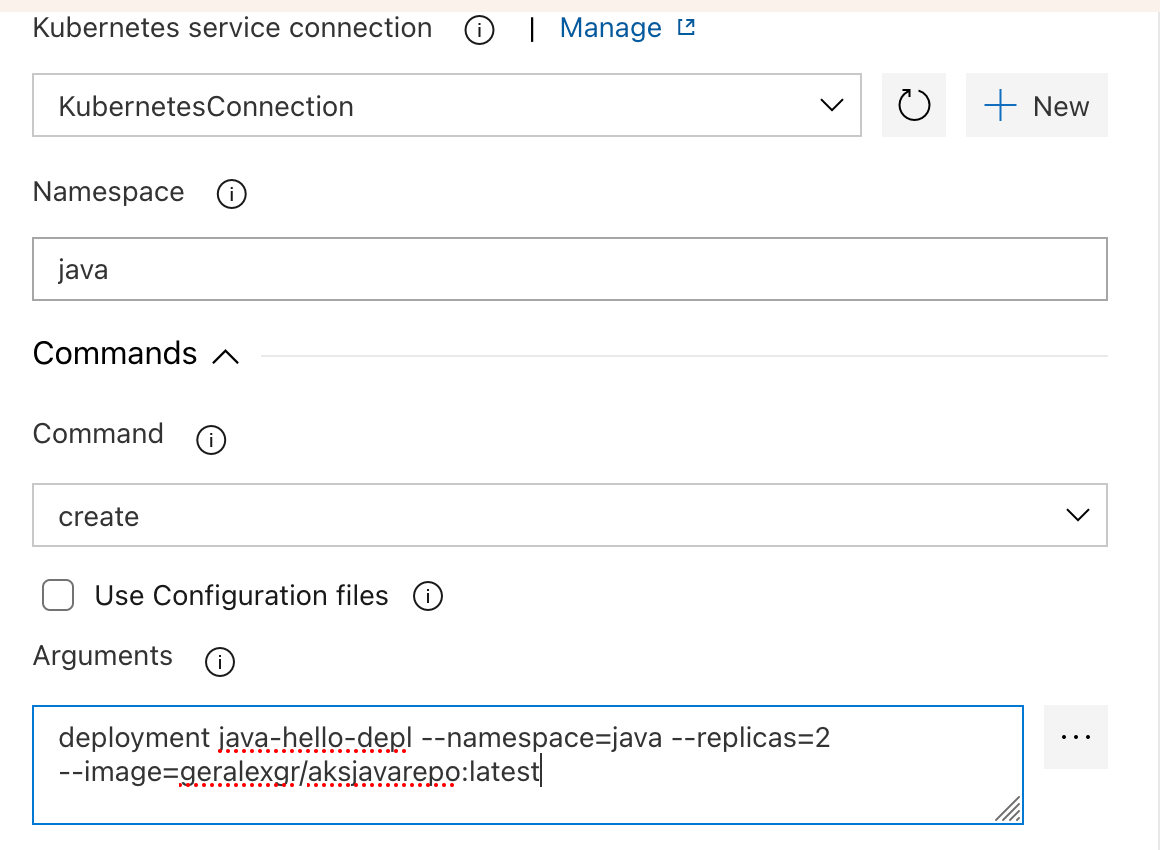
I chose two tasks, one for a deployment creation through kubectl commands and another one for a service exposure. You could also apply a .yml config file.

In this deployment I selected a sample image I created on a previous article, selected the namespace, added the requested parameters and selected create as the command. KubernetesConnection is the service connection that you will create and add on the first steps.
When you run the release pipeline you should see that the self hosted agent will be prepared for the run.
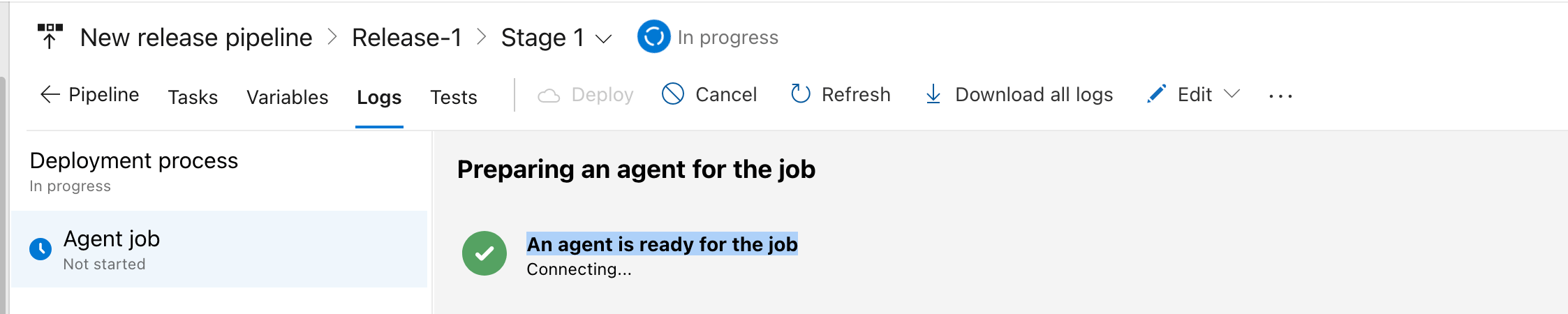
The job will start on your locally deployed agent.

The stages will start running.
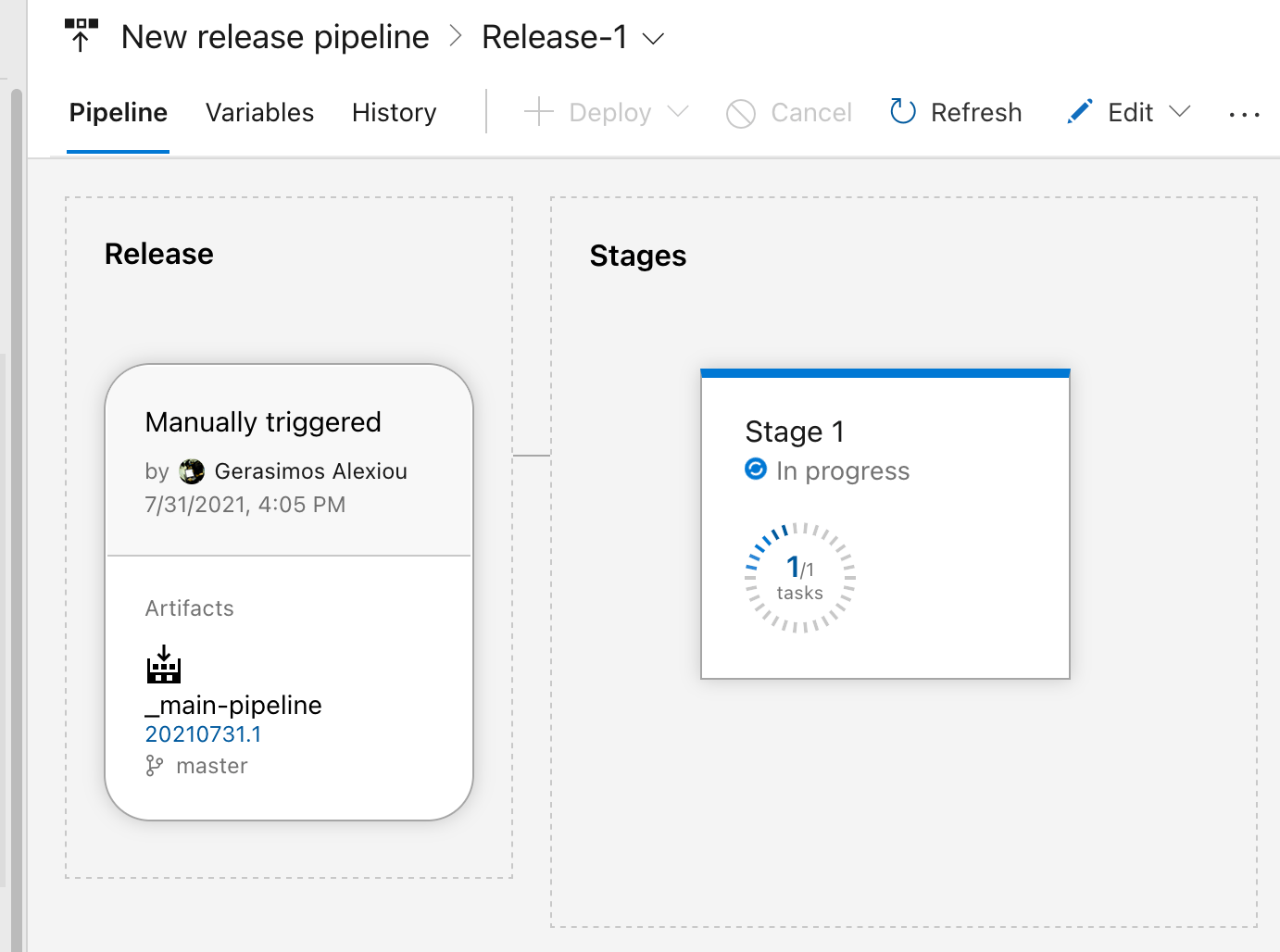
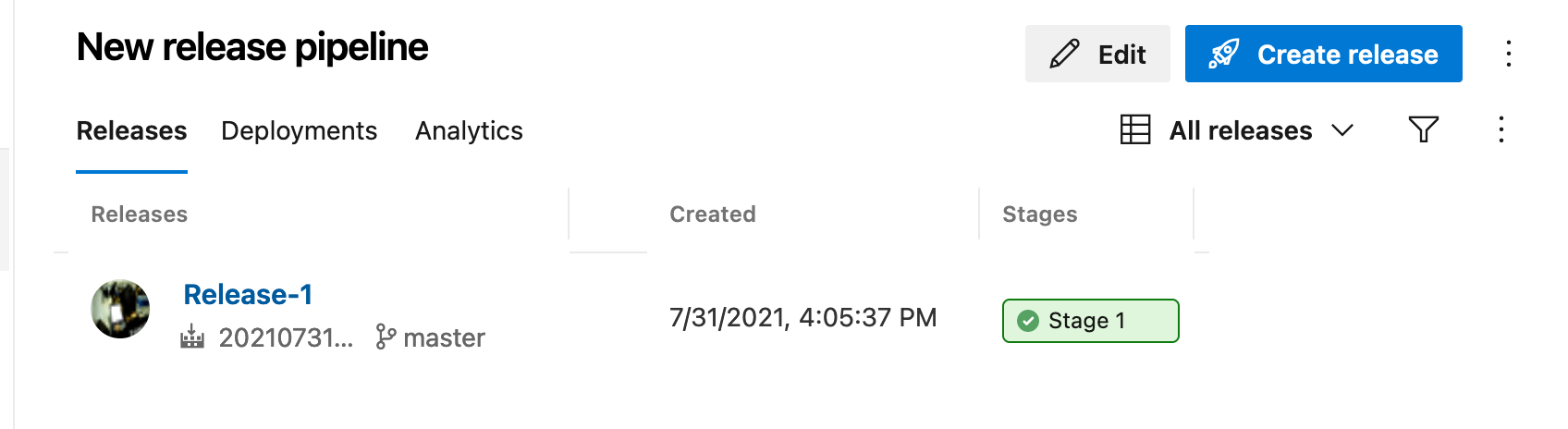
Taken into account that everything is correct with your commands and configuration the job will be successful.

The green button of result indicate the win of your try.
Posted on Leave a comment

Automate your deployments with .gitlab-ci.yml and Openshift – Gitlab Devops

This article describes how to create a Gitlab CI/CD pipeline using gitlab-runner and docker as the build strategy in order to deploy microservices on Openshift.

On my previous articles I have explained how to create your own hosted gitlab instance and deploy a single CI/CD pipeline using gitlab-runner. The whole setup was based on containers, as a result the infrastructure needed can be deployed on Openshift as well.

The pipeline consists of three steps, housekeeping, staging and cleaning. It is based on the default example that gitlab provides and uses oc commands to communicate with Openshift. It is configured to be triggered only for develop branch and every time a new commit is added the build starts.

  • The housekeeping step will remove every resource that has been created from a previous build.
  • The staging step will build the microservices based on your Dockerfile instructions as the build strategy is set to docker.
  • The cleaning task will remove the building pods that have been created from Openshift.

The housekeeping step is allowed to fail so that if no resources are found, the building step will continue its work.

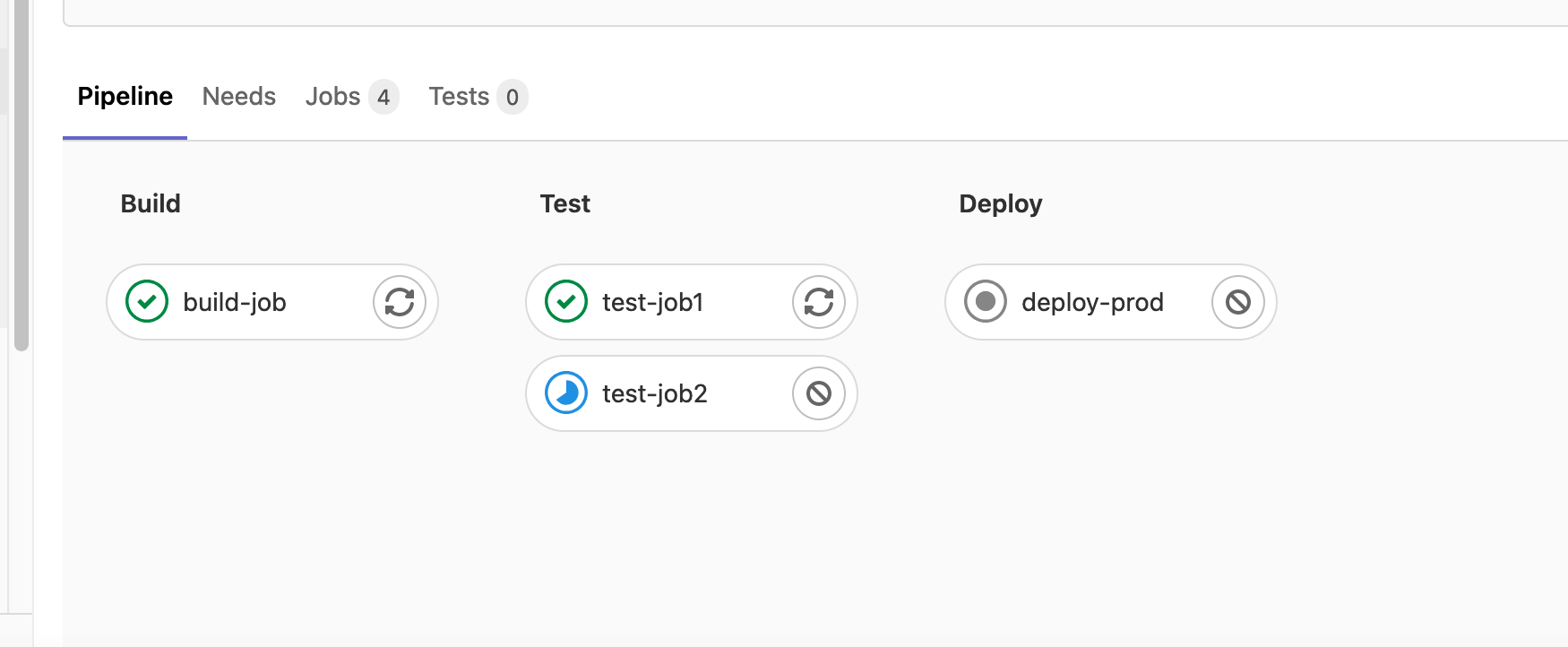
You can see below a simple run of the pipeline.

You can find the code of the pipeline in the below repository:

https://github.com/geralexgr/gitlab-cicd-openshift-deploy/blob/main/gitlab-ci.yml

Posted on Leave a comment

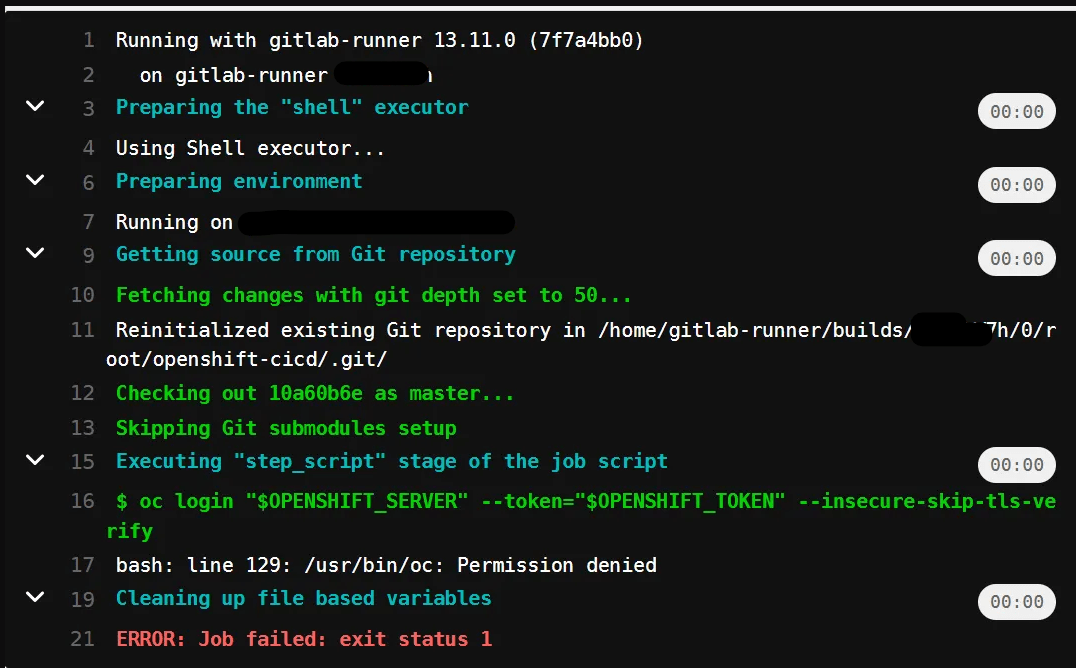
CI/CD operations – /usr/bin/oc permission denied

When you get a failure from your CI/CD pipeline regarding permission denied reasons, you should change them accordingly so that all users could access the oc tool.

The resolution is to provide 751 permissions or any other needed, but make some that user that executes the pipeline will be able to run the oc tool. Personally I added execute for others and I could bypass the error.

Posted on Leave a comment

Create a CI/CD pipeline with Gitlab on container deployments

In order to create a CI/CD pipeline with gitlab built-in functionality you should firstly create the appropriate .gitlab-ci.yml file. This is the file on which the steps will be described for the pipeline.

This file should be placed on the root structure of the branch and every time a commit is pushed on the remote repository the steps will run. Instructions have been provided from gitlab and can be found here

For this example I chose gitlab runner as the building tool and the deployment method of a docker container.

In order to install gitlab runner as a container perform the below steps:

Download the image.

 docker run -d --name gitlab-runner --restart always \
     -v /srv/gitlab-runner/config:/etc/gitlab-runner \
     -v /var/run/docker.sock:/var/run/docker.sock \
     gitlab/gitlab-runner:latest

Create a persistent volume

docker volume create gitlab-runner-config

Stop the container if already started from previous step and run it again with the mapped volume

docker run -d --name gitlab-runner --restart always \     -v /var/run/docker.sock:/var/run/docker.sock \     -v gitlab-runner-config:/etc/gitlab-runner \     gitlab/gitlab-runner:latest

You will see the container running

Register gitlab with your runner. You should get the registration token and runner url from your repository settings.

Inspect container and press gitlab-runner register

Start the runner

gitlab-runner start

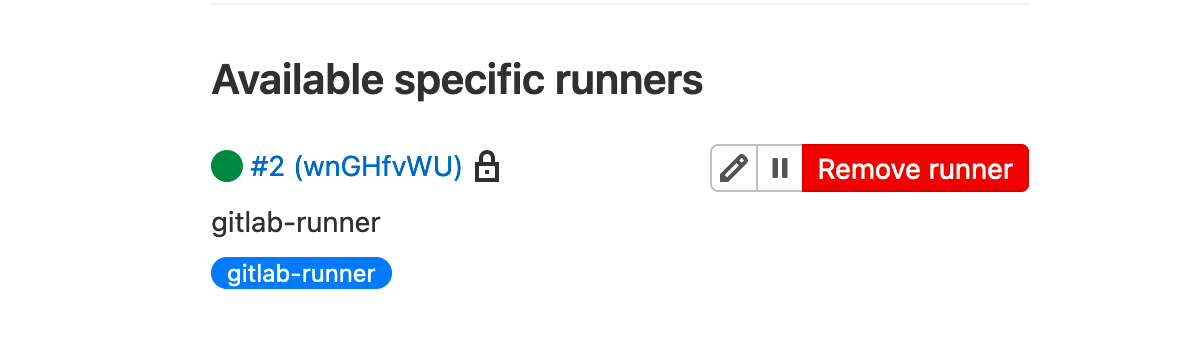
The runner should have been registered on your gitlab environment

Perform a commit and push changes to your repository

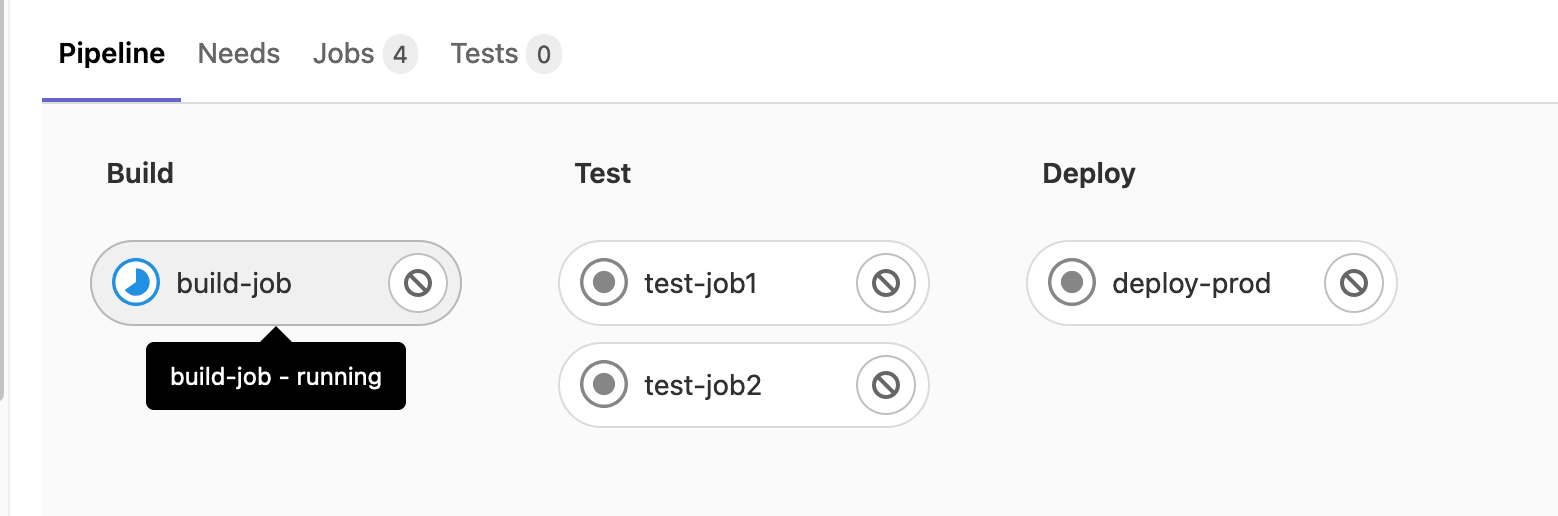
The run task should have started

Check the pipeline and see its status

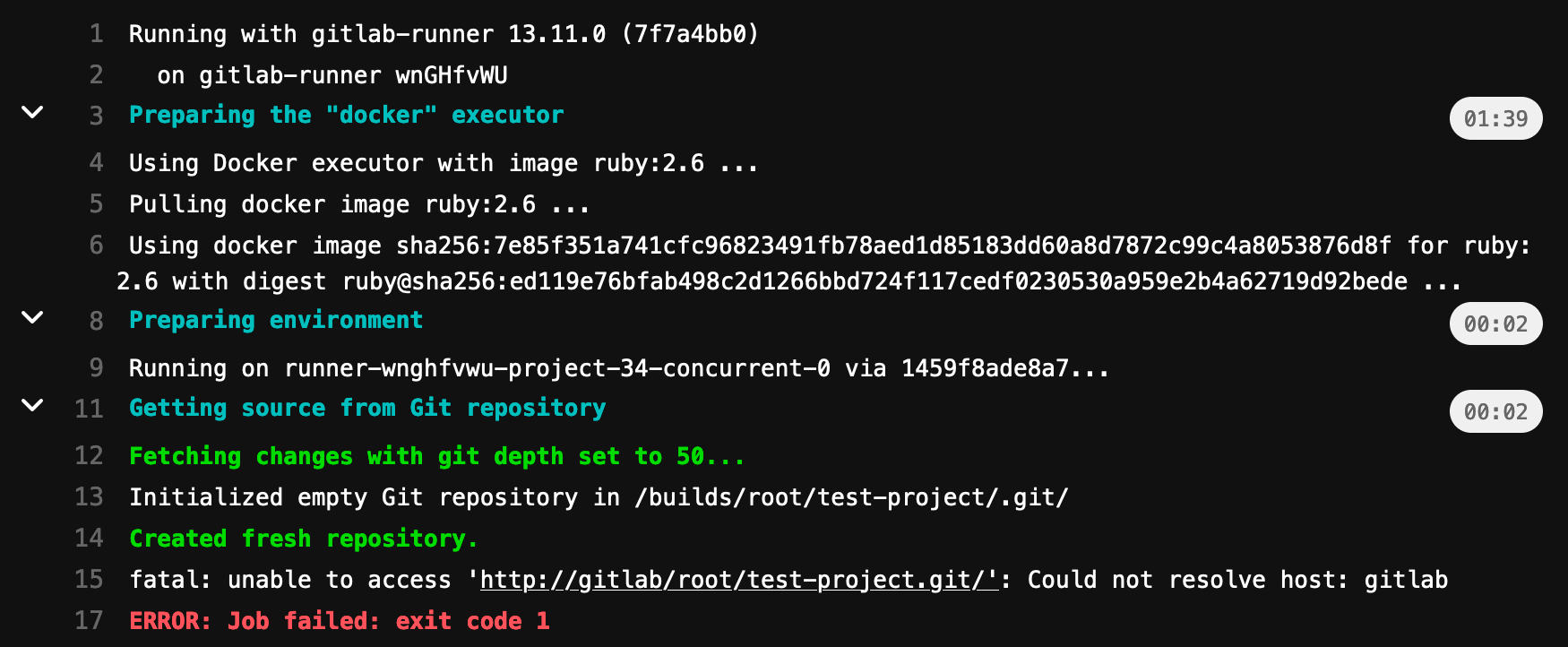
The job was not succesful and by checking the logs I could verify that DNS resolution could not be enstablished.

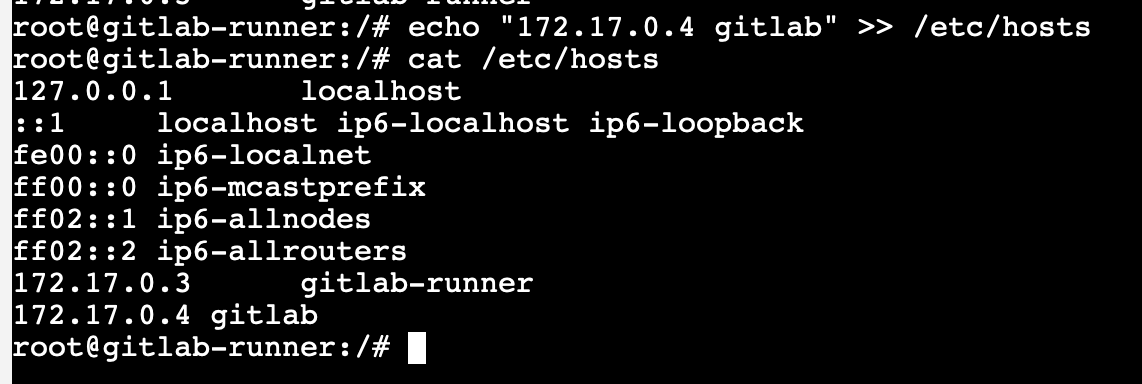
In order to fix that you should add an entry for your named gitlab container to your gitlab runner. Unfortunately there are no tools like vim, nano installed on gitlab-runner. However you can bypass this by echoing a value in your /etc/hosts file.

It is also important that your local computer can resolve by fqdn your gitlab deployment. This is necessary because docker should be able to read this entry and perform actions on it.

After those changes you will be able to run your pipeline successfully.