Posted on Leave a comment

Creating Windows/Linux Web App terraform: (Site Name “” / Resource Group “”): web.AppsClient#CreateOrUpdate: Failure sending request: StatusCode=0 — Original Error: autorest/azure: Service returned an error. Status=

I was struggling to create an app service using Terraform with the error shown below. I could not find a way to resolve this as the error message was difficult to interpret.

Creating Windows/Linux Web App: (Site Name "" / Resource Group ""): web.AppsClient#CreateOrUpdate: Failure sending request: StatusCode=0 -- Original Error: autorest/azure: Service returned an error. Status=<nil> <nil>

The code for the service plan was simple enough and I was so confused about this behavior.

resource "azurerm_resource_group" "rg" {
  name     = var.resource_group_name
  location = var.resource_group_location
}

resource "azurerm_service_plan" "app_service_plan" {
  name                = var.app_service_plan_name
  location            = azurerm_resource_group.rg.location
  resource_group_name = azurerm_resource_group.rg.name
  os_type             = "Windows"
  sku_name            = "F1"

}

resource "azurerm_windows_web_app" "app_service" {
  name                = var.app_service_name
  location            = azurerm_resource_group.rg.location
  resource_group_name = azurerm_resource_group.rg.name
  service_plan_id = azurerm_service_plan.app_service_plan.id

  site_config {
    use_32_bit_worker = true
  }
}

In order to resolve I enabled detailed debugging on terraform. As I was using Windows I used on powershell

$Env:TF_LOG = "TRACE"

and then I tried to run terraform apply again.

Terraform will provide detailed information about the running commands, so that I was able to determine the error.

Voila!

AlwaysOn should be disabled as there is a conflict.

In the documentation of azure web app one can find that always on is disabled by default however it does not seem to be correct.

https://registry.terraform.io/providers/hashicorp/azurerm/latest/docs/resources/windows_web_app#site_config

In order to resolve you should add the always_one variable to false.

  site_config {
    use_32_bit_worker = true
    always_on = false
  }

Then you can run terraform apply again, and the resource will be created.

Enable debugging on terraform for your OS:

https://support.hashicorp.com/hc/en-us/articles/360001113727-Enabling-debug-and-trace-run-logs-in-Terraform-CLI-Cloud-or-Enterprise

Update

I perfomed a PR in order to correct the wrong documentation and it has been merged. As a result the documentation will be correct counting from the next deploy.

[Docs fix]Correct docs for resource azurerm_windows_web_app by geralexgr · Pull Request #17051 · hashicorp/terraform-provider-azurerm (github.com)

Posted on Leave a comment

Azure DevOps best practices – Organization security settings

Security is a vital component of every Organization. As such DevOps components and environments should also be protected and created based on best practices. Below are some important settings that you should consider enabling/disabling for your Azure DevOps Organization. All these can be found on the left bottom corner of your organization page.

  • Disallow external users joining your organization. In order to protect your projects, pipelines and source code you should disable external user access. This setting combined with an Azure directory integration, should allow only verified users of your company.
  • Disable public projects. Sometimes a project may be created public by mistake and expose a threat for your source code. With the below setting you can disable public projects creation.
  • Enable Log Audit Events. For security purposes you should log Pipeline and user actions. Going into security policies you can enable log Audit events. Then a new pane will be created named Auditing. Through auditing you will have a view on what is happening in your projects.
  • Don’t add users on the Project Collection Administrators group on your organization. This group will provide global admin permissions for your organization and allow changing settings on it. Make sure you have you have only the necessary personnel on this group.

Disable Allow team and project administrators to invite new users. You can disable project administrators from inviting new users. This should prohibit unnecessary invitations on your projects as only Organization administrator will be able to invite new users.

  • Install only trusted extensions inside your organization. Extensions can help you implement more complex functionality on your projects using tasks that have been created from community/companies. However one should be careful for the installed extensions and only allow verified publishers that their code will not harm your organization.
  • Enforce a maximum allowed lifespan for new PAT tokens and also restrict full scoped PAT. When your organization is connected with your company AD you can restrict the full scoped PAT. As full access for a PAT can interact with many aspects of the organization it would be a best practice only to enable the service that is needed. Also a maximum lifespan of the tokens can be enforced so that compromised tokens will expire.

Although every practice you follow cannot protect you 100% the above settings are a good starting point for every Azure DevOps administrator.

Posted on 1 Comment

Update variable group using Azure DevOps rest API – pipeline example

Following my previous article about how to update a variable group using POSTMAN, I will now document how to implement the same behavior through a pipeline.

First things first you will need a PAT. I have included this PAT in a different variable group than the one that I will update. this is because when you update the variable group, all the variables that are inside will get lost. If you need to retain them, you should have to get them first and then add them again on the variable group.

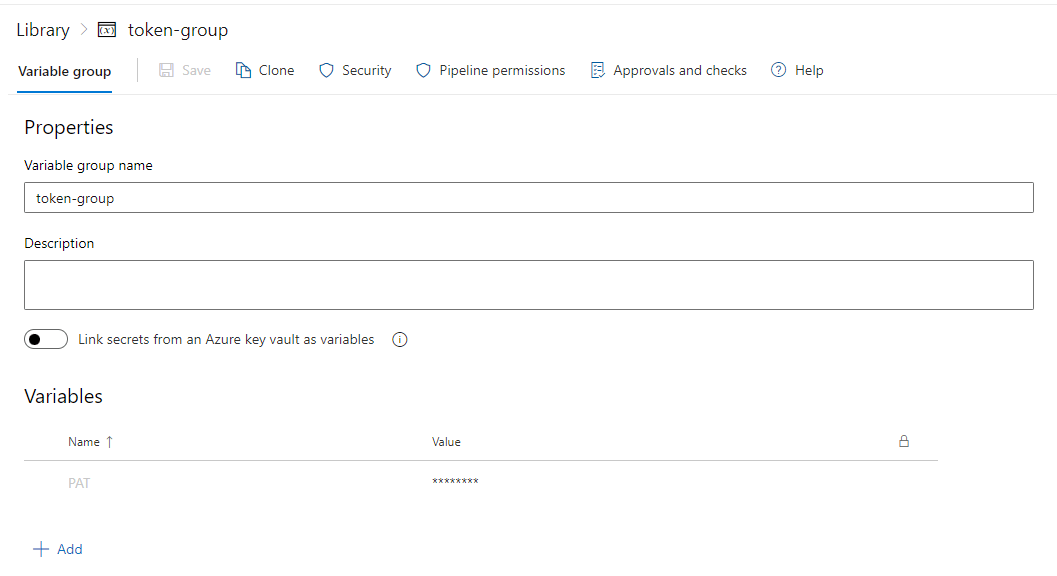
For this reason I have created a variable group named token-group which holds my PAT. I also made this variable a secret.

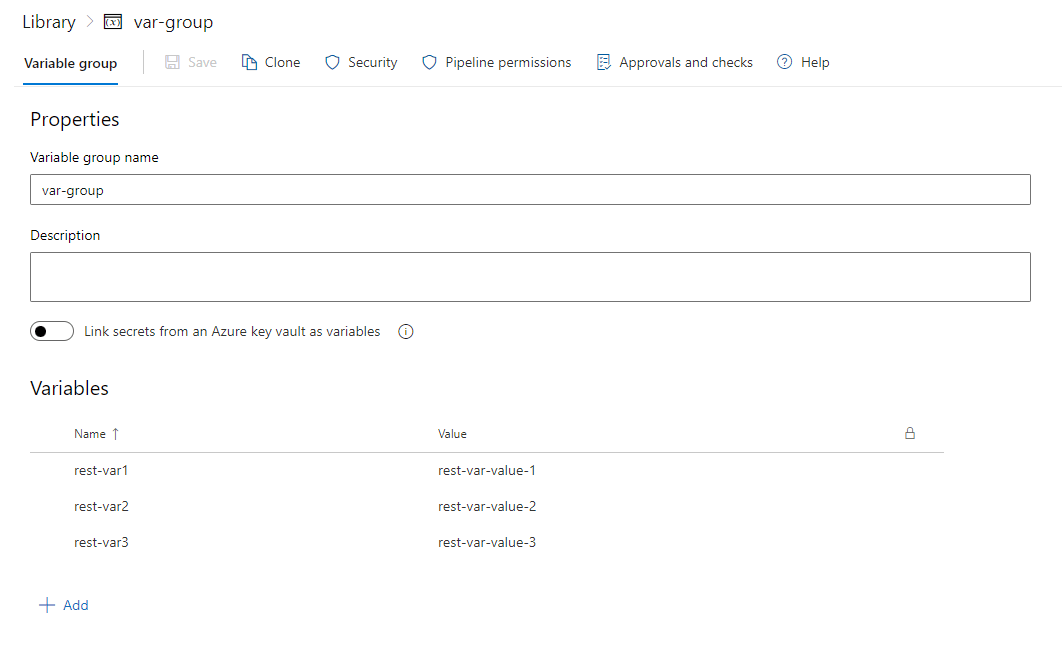
The variable group that I will update has the name of var-group and the id of 5.

The pipeline includes two tasks. The first task will loop through the variables on the group and print them out. The second task will update the variable group based on the JSON that you provided. You should change your ORG and project URLs.

trigger:
– none
pr: none
pool:
vmImage: ubuntu-latest
variables:
– group: token-group
steps:
– task: PowerShell@2
displayName: Get variables from variable-group
inputs:
targetType: 'inline'
script: |
$connectionToken="$(PAT)"
$base64AuthInfo= [System.Convert]::ToBase64String([System.Text.Encoding]::ASCII.GetBytes(":$($connectionToken)"))
$URL = "https://dev.azure.com/geralexgr/test-project/_apis/distributedtask/variablegroups?groupIds=5&api-version=7.1-preview.1"
$Result = Invoke-RestMethod -Uri $URL -Headers @{authorization = "Basic $base64AuthInfo"} -Method Get
$Variable = $Result.value.variables | ConvertTo-Json -Depth 100
Write-Host $Variable
– task: PowerShell@2
displayName: add variables on variable-group
inputs:
targetType: 'inline'
script: |
$connectionToken="$(PAT)"
$base64AuthInfo= [System.Convert]::ToBase64String([System.Text.Encoding]::ASCII.GetBytes(":$($connectionToken)"))
$URL = "https://dev.azure.com/GeralexGR/test-project/_apis/distributedtask/variablegroups/5?api-version=5.1-preview.1"
$body = '{"id":5,"type":"Vsts","name":"var-group","variables":{"rest-var1":{"isSecret":false,"value":"rest-var-value-1"},"rest-var2":{"isSecret":false,"value":"rest-var-value-2"},"rest-var3":{"isSecret":false,"value":"rest-var-value-3"}}}'
$Result = Invoke-RestMethod -Uri $URL -Headers @{authorization = "Basic $base64AuthInfo"} -Method Put -Body $body -ContentType "application/json"
$Variable = $Result.value.variables | ConvertTo-Json -Depth 100
Write-Host $Variable

After running the pipeline you will notice a null output on the update of the variable group. This is the requested result and as task has not failed your var group will get updated.

Variables inside json