Posted on Leave a comment

Change name for Azure devops pipeline

A common requirement when you work on your pipelines would be to name them according to your needs.

By default Azure devops name your pipeline with the buildID and the commit that initiated the build as shown below.
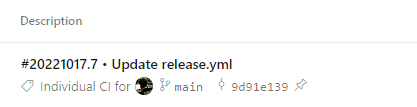
In order to change the name of the pipeline you can use the name keyword.

name: mypipeline

trigger:
- none

pool:
  vmImage: ubuntu-latest

steps:
- script: echo Hello, world!
  displayName: 'Run a one-line script'

Then you will have your custom name in the run of the pipeline.

Also from September 2022 and later, you can also remove the commit message from the title using appendCommitMessageToRunName

So by also adding this option

name: mypipeline
appendCommitMessageToRunName: false

trigger:
- none

pool:
  vmImage: ubuntu-latest

steps:
- script: echo Hello, world!
  displayName: 'Run a one-line script'

I will get only my preferred name on the pipeline run.

YouTube tutorial:

Posted on Leave a comment

Starting template for Azure devops pipeline

The below code can be used as a starter entry point for your DevOps pipelines. It is designed with best practices in mind with stages and jobs in order to isolate different functionalities and make it modular. You can include more stages,jobs,tasks by copy and pasting the code.

trigger:
- none

pool:
  vmImage: ubuntu-latest

stages:
- stage: stage1
  displayName: display name for your stage
  jobs:
  - job: job1
    displayName: display name for job1
    steps:
    - script: echo job1.task1
      displayName: running job1.task1

  - job: job2
    displayName: display name for job2
    steps:
    - script: echo job2.task1
      displayName: running job2.task1

The result is shown below

Posted on 1 Comment

Parameters and variables – GitHub workflows

Variables and parameters can be used on GitHub workflows in order to provide input and store temporary values that should be passed on tasks. When you need to ask for user input one should use the parameters and when that is not necessary variables is the preferred way to go.

We will now examine how we can use both in a github workflow.

You can define an input parameter using the inputs keyword. Using the code below you can run a workflow manually. The input that is requested is a string and the description is the message that will be shown to the user.

  # Allows you to run this workflow manually from the Actions tab
  workflow_dispatch:
    inputs:
      username:
        description: "give me your username"
        default: "geralexgr"
        type: "string"

Then later in the workflow you can use the value of the input using inputs.username

The below job will show the input of the user:

  job1:
    runs-on: ubuntu-latest
    steps:
      - name: task inside job1
        run: |
          echo The username is ${{ inputs.username }}

Variables on the other hand can be used during runtime. Similar to using default environment variables, you can use custom environment variables in your workflow actions. To create a custom variable, you need to define it in your workflow file using the env context.

      - name: print variable
        env:
          NAME: "Gerasimos"
        run: |
          echo Variable name is: $NAME

During workflow run the variable will be printed on the output.

Youtube tutorial:

Posted on Leave a comment

Enable debug logs on Azure DevOps pipelines

In some cases you may need to troubleshoot your azure devops tasks inside a job and get a more detailed output than the default. You can enable a detailed log output using predefined variables. In more detail you can use System.Debug and set it to true.

variables:
  - name: System.Debug
    value: true

By doing so you will get more debug messages as shown in the below screenshot.