Posted on Leave a comment

Manual user approval for pipeline execution

In Azure DevOps pipelines you can use approvals in order to allow or not the deployment based on user input on a pipeline.

Find my article on how to create approvals on build and release pipelines below.

But what happens if you want to run some tasks, get user input and then continue with some other tasks? For this reason you could use the Manual Validation task. As the name indicates, you can validate the user input and perform actions based on this input.

If you approve the execution then the pipeline will continue and if not the pipeline will stop.

You can then use the result of the previous job in order to perform other actions with succeeded() or failed() conditions.

An example of the Validation Task is shown below:

trigger:
- none

pool:
  vmImage: ubuntu-latest

jobs:
- job: job1
  pool: server
  steps:
  - task: ManualValidation@0
    inputs:
      notifyUsers: 'someone@kati.com'
      instructions: 'continue?'

- job: job2
  dependsOn: job1
  steps:
  - script: echo Hello, world!
    displayName: 'Run a one-line script'

The ManualValidation should be used mandatory with pool:server as shown above because it is an agentless job and cannot be run on the standard agent pools.

The job2 as it depends from job1 will run only if the approval is not rejected from the user.

Posted on Leave a comment

Change name for Azure devops pipeline

A common requirement when you work on your pipelines would be to name them according to your needs.

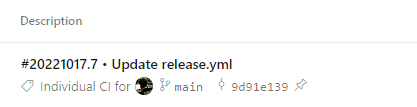
By default Azure devops name your pipeline with the buildID and the commit that initiated the build as shown below.

In order to change the name of the pipeline you can use the name keyword.

name: mypipeline

trigger:
- none

pool:
  vmImage: ubuntu-latest

steps:
- script: echo Hello, world!
  displayName: 'Run a one-line script'

Then you will have your custom name in the run of the pipeline.

Also from September 2022 and later, you can also remove the commit message from the title using appendCommitMessageToRunName

So by also adding this option

name: mypipeline
appendCommitMessageToRunName: false

trigger:
- none

pool:
  vmImage: ubuntu-latest

steps:
- script: echo Hello, world!
  displayName: 'Run a one-line script'

I will get only my preferred name on the pipeline run.

YouTube tutorial:

Posted on Leave a comment

Success pipeline state on GitHub with pipeline failure

When your pipeline fails on Azure DevOps and the source code is gathered from GitHub (using a service connection) you will notice a failure icon on the repository because the status of the run from Azure DevOps is reported to GitHub. This is the normal behavior and we want it to work like that.

Lets take as example the below run.

The failure will be visible on the github along with the particular commit.

However sometimes we need to allow tasks fail without reporting a failure state on GitHub. You can do that by using continueOnError keyword. With this functionality you instruct the DevOps platform to allow failure for a particular task or job without stopping the pipeline.

trigger:
- none

pool:
  vmImage: ubuntu-latest

jobs:
- job: job1

  steps:
  - script: this script will fail
    continueOnError: true
    displayName:  task 1

  - task: PowerShell@2
    displayName: task 2
    inputs:
      targetType: 'inline'
      script: |
        Write-Host "Hello World"

This will result on a warning state for your pipeline on Azure DevOps.

This means that the pipeline has been executed successfully but some steps have failed.

Nevertheless the state on GitHub will be success as the pipeline is not in a failed state on Azure DevOps.

Posted on Leave a comment

##[error]Error: An unexpected error occurred while trying to push the package with VstsNuGetPush.exe – You need to have ‘ReadPackages’

When you try to push a nuget package from a DevOps pipeline on Artifacts feed you may face the below error.

##[error]Error: An unexpected error occurred while trying to push the package with VstsNuGetPush.exe. Exit code(1) and error(Error:
Microsoft.VisualStudio.Services.Common.VssServiceException: User 'xxx' lacks permission to complete this action. You need to have 'ReadPackages'

This error could be resolved by editing the settings of the feed.

In more detail under permissions you can find which users or service account can perform actions based on their role.

By default I could locate the Project Collection Build Service (Organization) with the Contributor permissions but did not work. As a solution I removed that and added "Project Name" Build Service (Organization). This is the build service for the project on which I have created the pipeline specifically.